Library
The Library stores reusable clips organized into packs. Each library clip is a complete snapshot (layers, modulators, routings, and all) so you can build a collection of go-to patterns and recall them in any project.
Open the Library from View → Library or press CmdCtrlCmd/Ctrl + 1.
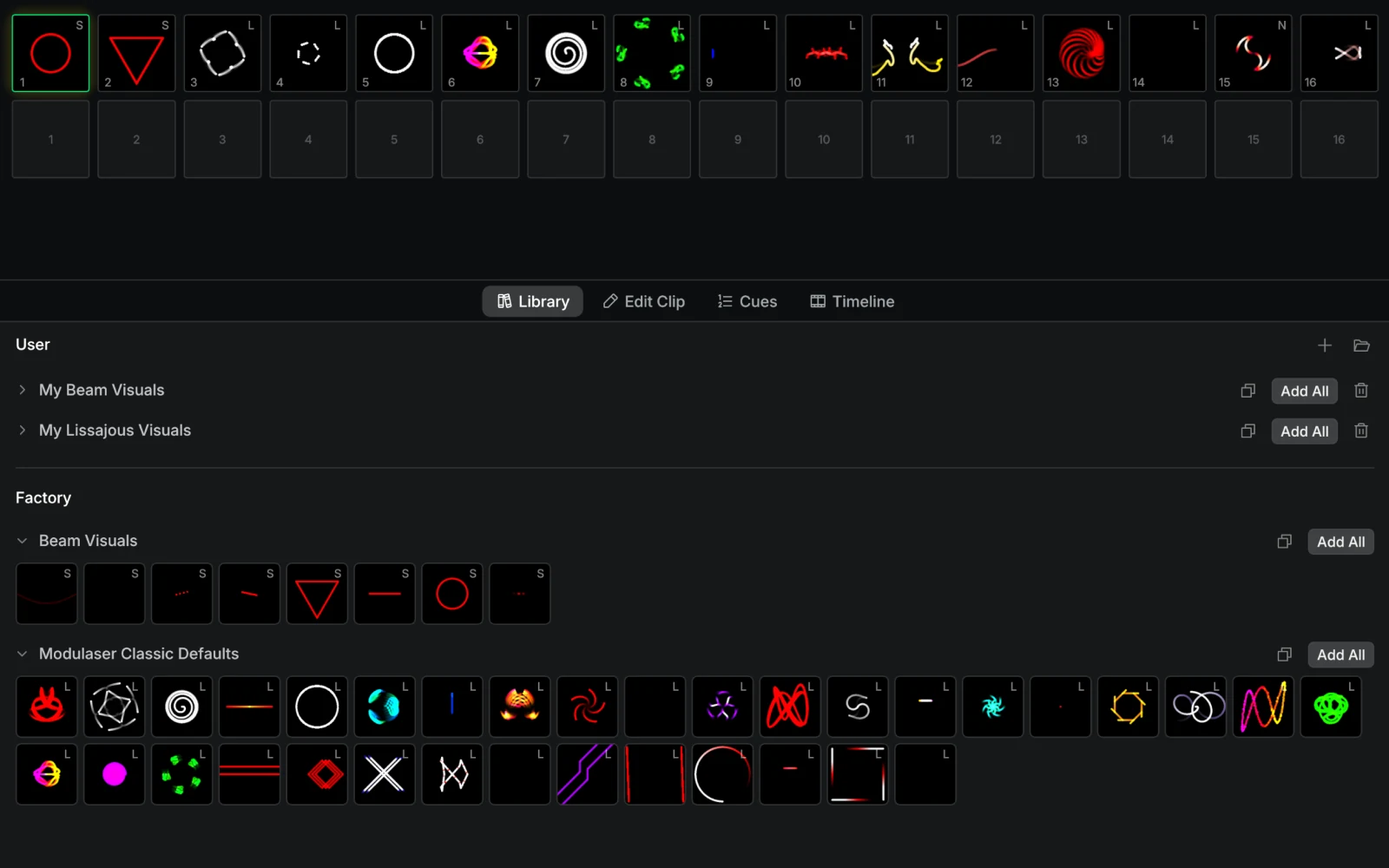
Applying clips
Click a library clip to place it in the next empty slot on your clip deck. Drag it onto a specific slot to place it exactly where you want. Dropping onto an occupied slot replaces the clip that's there.
To apply an entire pack at once, right-click the pack header and choose Add All. Every clip in that pack fills consecutive empty slots.
Hovering over a library clip shows a live preview in the viewport, so you can audition clips before committing. If an output group is set as the live target (the monitor button on its card), the previewed clip is also routed there while you hover. It only shows on the laser once that group's DAC is armed. See Multiple Lasers. Nothing is assigned or saved until you actually apply it.
Applied clips are independent copies. Editing a clip on your deck does not update the library version, and vice versa.
Saving clips to the library
Right-click any clip on your deck and choose Store in library to save it. The submenu lists all your packs. Pick one, or select New pack to create one and save the clip in a single step.
You can also drag a clip from your deck onto one of your packs to save it there. Dropping onto an existing library clip replaces that clip's stored state and refreshes its thumbnail.
Packs
Clips are grouped into named packs. Modulaser ships with two read-only Factory packs. Your own packs appear under User:
- Beam Visuals: beam-style patterns ready for atmospheric and concert work.
- Modulaser Classic Defaults: the classic Lissajous reference patterns with modulators.
Use the + button in the User section to add an empty pack, and the folder button to open the library folder. Right-click a pack header to rename or delete your own packs, or to duplicate or add all on any pack. Duplicate is also how you customize a Factory pack: it creates an editable copy under User. Right-click a clip thumbnail to remove just that clip.
Tips
- Build a starter kit: Save your most-used patterns into a personal pack. When starting a new show, use Add All to populate your deck in one click.
- Name by intent: Pack names like "Openers", "Bass Hits", or "Ambient Fills" are easier to scan mid-show than technical labels. Future you will ask why everything is called "test 7".
- Clone clips: Hold
Altand drag a clip on the deck to another slot to drop a copy there. The original stays put, and any clip in the target slot is replaced. Useful for spinning variations off a library clip without going back to the library.