Projection Mapping
Every laser in Modulaser has a projection area: a four-corner quadrilateral that defines where content appears in physical space. Drag those corners to scale, rotate, warp, and keystone-correct the output to fit a wall, a building facade, a stage element, or any flat surface your laser is aimed at.
By default, a new laser's projection area is a small square in the middle of its scan field. Until you stretch the corners outward, the laser paints into a square about 30% of the field's width and height. Shaping this area to fit your projection surface is the first step when setting up a new laser.
Shrinking the projection area gives the galvos less distance to travel per frame. If output flickers, distorts, or loses corner accuracy, a smaller projection map is often the first profile-safe fix to try. See Improve Laser Output for the scan tuning side.
Before You Start
You'll need:
- A laser added in Output Settings, with a DAC assigned. See your DAC setup guide if you haven't done this yet.
- The laser armed, so it physically emits. You can reshape the projection area whether or not the laser is armed, but you won't see anything on the wall to align against until it is.
- A physical surface to project onto: a wall, screen, facade, or stage element.
Fitting to a Surface
This is the main flow. You'll work between two tabs of the Output Settings window: Settings (to run a built-in test pattern) and Projection Map (to drag corners). Changes apply live and save automatically, with no Apply or Save button. Corner positions belong to the laser setup in Modulaser's settings, not to the project file.
- Open the Output Settings window with Output Settings in the Output Groups panel (or
CmdCtrlCmd/Ctrl + L), then select your laser in the left panel. - On the Settings tab, pick an alignment pattern from the Test pattern dropdown (Boundary + Diagonals, Grid + Circles, and Corner Dots work well) and click Test Pattern. If the laser isn't armed yet, Modulaser offers to arm it. Your show content is paused while the test pattern is active.
- Switch to the Projection Map tab.
- Drag corners until the test pattern aligns with the edges of your target surface. Switch the drag mode to Sides if you'd rather move whole edges at once.
- Use the numeric corner inputs for fine adjustments.
- If straight lines in the pattern look bowed on the wall, switch the Mapping mode from Linear to Perspective. See Linear vs. Perspective for when to choose which.
- Switch back to the Settings tab and click Stop Test.
If you're projecting at a steep angle, the keystone distortion will be significant. Pull the far corners wider and the near corners narrower until the output looks square on the surface.
To start over, click Reset on the Projection Map tab. The projection area returns to the default centered square.
For multi-laser setups where each laser covers a different section of the same surface, set each laser's projection area to its corresponding region. Route the same content to all lasers through output groups and the corner mapping handles the rest.
Troubleshooting
- Test pattern is on but nothing appears on the wall. Confirm the laser is armed, the correct DAC is selected, and any hardware safety interlock or key switch on the projector is engaged. See your DAC setup guide.
- Output is a tiny square in the middle of the wall. That's the default projection area, about 30% of the field's width and height. Drag the corners outward to fill your target surface.
- Straight lines in my content look curved. Switch the Mapping mode from Linear to Perspective.
- Output is mapped twice on an AVB device. AVB hardware often applies its own projection map. Keep Modulaser's map full-size unless you want both.
- A corner won't drag where I want it. The editor blocks drags that would make the quad concave or self-intersecting. Reposition the other corners first, or click Reset and start over.
The Projection Editor
The editor is a canvas with the projection quad on the left and an inspector panel on the right.
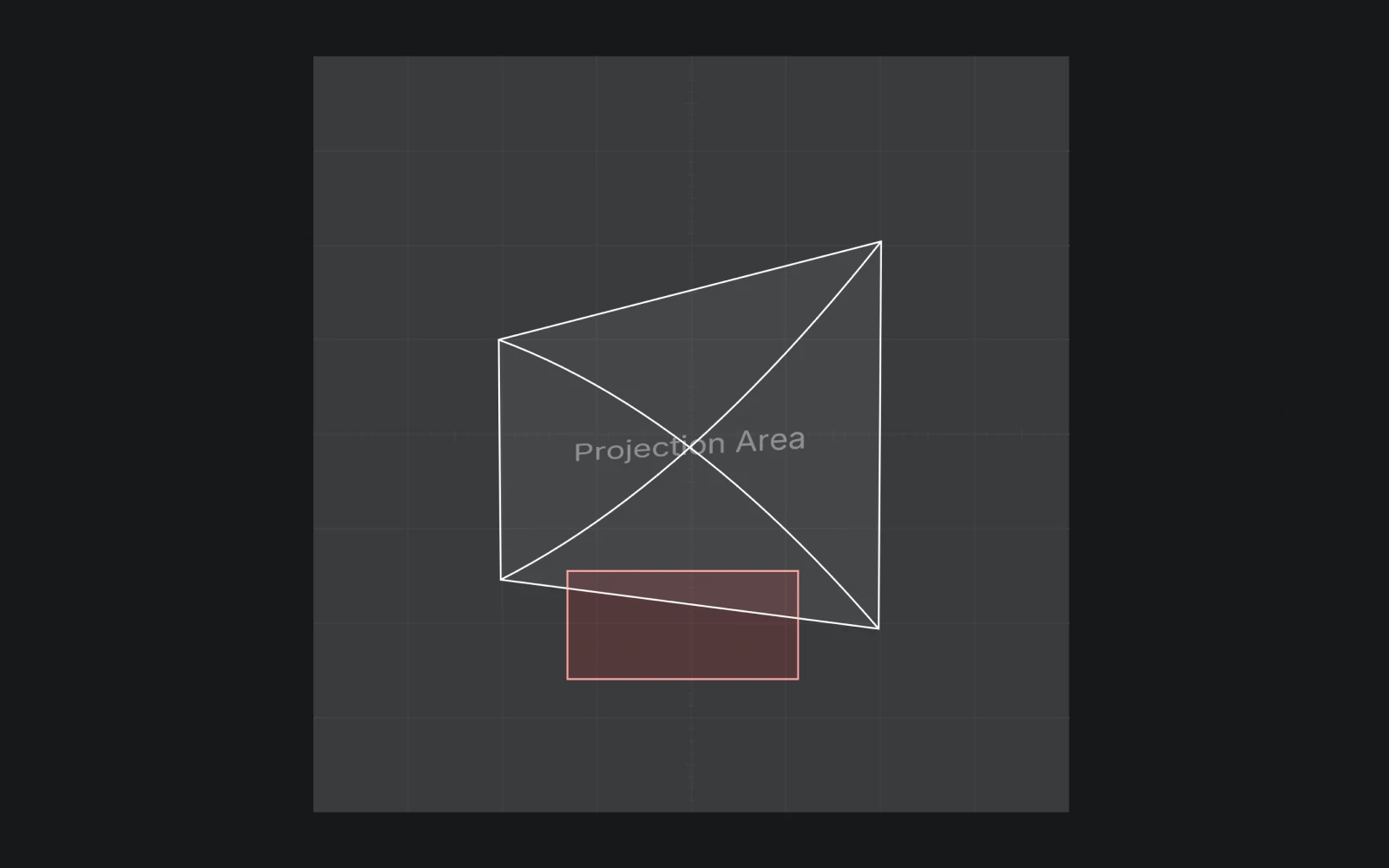
The inspector panel gives you:
- Layers list: the projection area at the top, with any blind zones listed below. Click a row to select it.
- Drag mode: switch between Corners (move individual corners) and Sides (drag entire edges).
- Mapping mode: switch between Linear and Perspective. See Linear vs. Perspective below.
- Corner inputs: numeric X/Y fields for exact positioning. Values are normalized to the scanner's full field, where
0is one edge and1is the opposite edge. - Power reduction (blind zones only): sets the dimming amount for the selected zone, from 0 to 1.
- Mirror X / Mirror Y / Reset: quick transforms for the projection area.
Editing
Click a corner and drag to reshape, or switch to Sides mode to drag entire edges. Drag inside a quad to move all four corners together.
Hold Shift while dragging a projection area corner for proportional resize: all corners move symmetrically around the center. To delete a blind zone, select it and press Delete or Backspace.
The editor enforces a convexity guard, so you can't drag a corner into a position that would make the shape concave or self-intersecting.
Canvas Navigation
Space+ drag, right-click drag, or middle-click drag to pan.- Two-finger scroll or the scroll wheel pans. Pinch, or hold
CmdCtrlCmd/Ctrlwhile scrolling, to zoom toward the pointer. CmdCtrlCmd/Ctrl + =/CmdCtrlCmd/Ctrl + -zoom in and out, andRfits the view.- Right-click the background to toggle a context menu with Fit View.
Arrow keys nudge the selected shape. Hold Shift for larger steps. See Keyboard Shortcuts for the full list.
Linear vs. Perspective
The Mapping control on the inspector panel decides how content is warped to fit your four corners:
- Linear (default): bilinear interpolation. Fast and works well when the projection quad is roughly rectangular, but straight lines in your content can bow at strong keystones.
- Perspective: a true 3×3 homography. Straight lines stay straight regardless of how skewed the quad is. Use this whenever you're projecting at a steep angle or onto a surface that requires significant keystone correction.
If your output looks "right" with Linear, there's no need to switch. Reach for Perspective the moment a straight line in the source content starts to look curved on the wall.
Blind Zones
Blind zones are per-laser safety masks. Each zone is a four-corner quad with a configurable power reduction between 0% and 100%.
- 100% reduction: hard exclusion. The beam is blanked inside the zone and the path is split cleanly around it.
- Partial reduction (anything below 100%): the beam stays visible but intensity is scaled down. Use this for dimming near cameras, reflective surfaces, or zones where full power isn't safe.
Each laser can have multiple blind zones, and they stack: where two zones overlap, the highest reduction wins at that point.
Zones are placed in the laser's full scan field, independent of the projection area. They stay where you put them when you move or reshape the projection area, so the masked region in the room doesn't shift.
To add one, click the + button in the Blind Zones section of the layers list. The new zone is a small square in the middle of the current view with 100% power reduction, so it blanks that area until you change it. Drag it to cover the area you want to mask, then set its power reduction in the inspector panel. Each zone's fill opacity reflects its power reduction.
Common uses
- Audience protection: mask the area where the audience is standing.
- Camera protection: reduce power where a lens might catch a direct beam.
- Equipment masking: block output over projectors, lighting fixtures, or other gear.
- Venue constraints: respect architectural features or house rules about where beams can go.
Blind zones are a tool, not a substitute for proper safety planning. Audience scanning requires training, permits, and compliance with local regulations. Never aim beams into audience areas unless you are trained, permitted, and operating within those rules. See Laser Safety before configuring zones around people.
Previewing Your Mapping
The 3D Beam View renders a 3D preview of your laser beams projecting onto a virtual wall. It uses the same mapping and blind-zone reduction as the real output pipeline, so the preview matches what the laser actually outputs.
Each laser's position and rotation are set in the 3D Beam View, and its scan angle is set in the laser profile's 3D preview section. They only affect the preview, not the real output. Match them to your physical setup, then use the 3D Beam View to verify alignment before going live.
Tips
- For multiple lasers on the same surface, set up one laser's projection area first, then duplicate it (right-click the laser in the left panel, Copy, then Paste projection map). Paste copies the four corners only, so set the Mapping mode and any blind zones on each laser.
- The editor shows blind zones visually, but to see their effect on actual beam output, check the 3D Beam View.
- Once you've dialed in a venue, export your laser configuration from the Output Settings window. Corner positions are stored in Modulaser's settings rather than in the project, so a portable export (the ⋯ menu, Export settings…) is how you bring a calibrated setup to another machine or the next show.