Timeline
The Timeline lets you arrange clips on a timecode-synced track and play them back frame-accurately. Use it for pre-programmed shows where every clip triggers at a precise moment, synced to music, video, or an external timecode source.
Think of it as a sequencer for your laser show. You place clips on tracks, set fades, automate parameters over time, and let the timeline drive everything when the show runs.
Timeline vs Cues
Modulaser has two ways to assign clips to output groups: Cues (live triggering with BPM/beat sync) and Timeline (frame-accurate timecode playback). Only one can be active at a time.
When you switch between them, the previous controller stops and all output group assignments clear. Timeline auto-plays when activated. Cues requires you to hit play.
Time Sources
Timeline can run from three timing sources:
Internal: Uses your computer's clock. You get play, pause, seek, and loop controls. Good for rehearsing or running shows without external gear.
SMPTE (LTC): Reads timecode from an audio input. Modulaser decodes the LTC signal and locks playback to the incoming timecode. Frame rate is auto-detected, or you can set it manually if the signal is noisy. On a multi-channel interface, pick which input channel carries the LTC signal in Settings → Time.
MIDI Time Code (MTC): Follows MTC arriving on any MIDI port enabled for input or clock in the Devices tab, including locate jumps when the master repositions. Pick it as the Source in Settings → Time, where the detected frame rate is shown. See MIDI.
LTC Signal Status
When using SMPTE input, the signal goes through three states:
- No Signal: No audio device connected
- Searching: Waiting for valid timecode frames (500ms timeout)
- Locked: Receiving valid timecode, playback follows the signal
If the signal drops, the timeline jam-syncs: the internal clock keeps the show running from the last decoded frame so audio, clips, and recording don't stall. Two settings in Settings → Time tune this, and they apply to MTC as well:
- Freewheel tolerance: How long to keep running before pausing (default 500ms, max 2000ms).
- Keep running on signal loss: When enabled, jam-sync continues indefinitely and transport never pauses.
When LTC returns, the position snaps back to the master.
Frame Rates
Timeline supports four frame rate standards:
| Frame Rate | Use |
|---|---|
| 24 fps | Film |
| 25 fps | PAL video (Europe) |
| 29.97 fps drop-frame | NTSC video (North America) |
| 30 fps non-drop | Audio-only |
Drop-frame timecode displays with a semicolon separator (e.g. 01:00:32;15) and skips frame numbers 0 and 1 at the start of each minute, except every 10th minute. This keeps the timecode aligned with real clock time at 29.97 fps.
Typical LTC Show Setup
In many professional setups, the backing track outputs LTC alongside audio. A common convention is to start each song at a different hour: 01:00:00:00 for song 1, 02:00:00:00 for song 2, and so on. The system auto-switches content based on the hour.
The Editor
The timeline editor shows one track per output group.
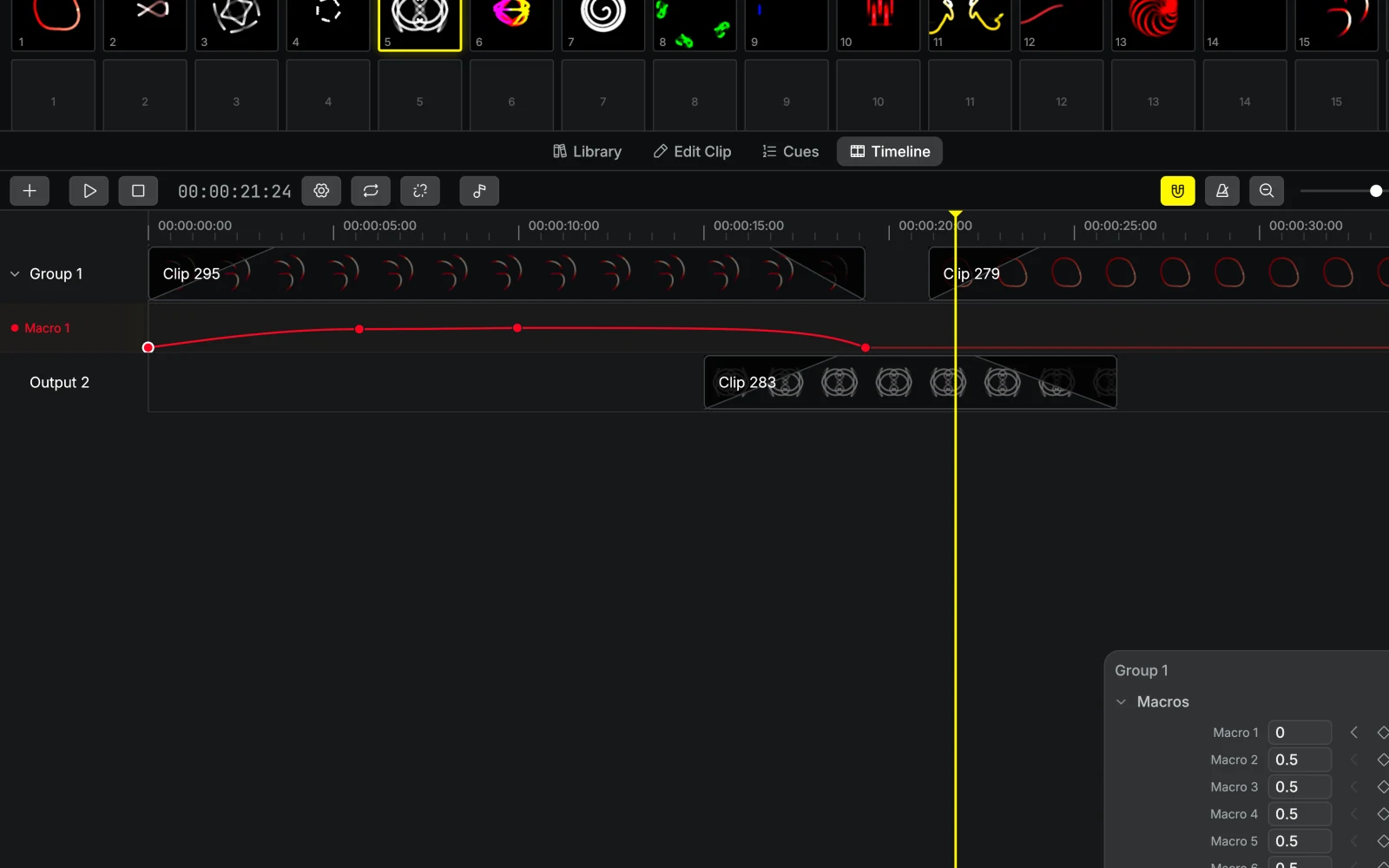
Adding Clips
Drag a clip from the library onto a track. The clip's duration is auto-detected from the source (for sequences) or falls back to the configured default. When BPM grid mode is active, the default is 4 bars.
The gear icon in the top bar opens Timeline Settings: default clip duration and fades, and Timeline End, which sets where playback stops (or loops, if Loop is on). You can also drag the end marker on the tracks.
Only one clip can occupy a given output group at any frame. A clip you add, move, or trim onto others overwrites them: clips it covers are removed or trimmed, and a clip it lands inside is split around it.
Clip Interactions
| Action | Input |
|---|---|
| Select | Click a clip. CmdCtrlCmd/Ctrl+click to toggle multi-select, Shift+click to extend selection |
| Select all | CmdCtrlCmd/Ctrl + A |
| Move | Drag horizontally, or drag vertically to move between output groups. CmdCtrlCmd/Ctrl+drag to snap to bars in BPM grid mode |
| Trim | Drag the left or right edge |
| Swap | CmdCtrlCmd/Ctrl + Shift+drag a clip past a neighbor to trade places instead of overwriting |
| Split | S cuts at the playhead. Tap B for the blade, then click where to cut |
| Clone | Hold Alt and drag |
| Duplicate | CmdCtrlCmd/Ctrl + D |
| Open in editor | Double-click |
| Context menu | Right-click (copy, cut, fade presets, transition, delete) |
Automation keyframes stay where they are when you move, paste, duplicate, or clone a clip, unless you selected them along with it. To take a clip's keyframes along, CmdCtrlCmd/Ctrl + Alt+drag to move it, or use Paste with Keyframes (CmdCtrlCmd/Ctrl + Alt + V) and CmdCtrlCmd/Ctrl + Alt + D to copy it. Its keyframes then replace the automation where it lands. Deleting a clip deletes its keyframes.
A clip that can't produce output (missing file, unavailable video source, a receiver that stalled or errored) shows a warning badge in its top-left corner. Hover the badge for the reason.
Clip, marker, tempo, automation, and audio clip edits are undoable with CmdCtrlCmd/Ctrl + Z. Transport, zoom, default duration or fade settings, and the audio track's mute and volume are not, and a timeline undo never reverts them.
Fades
Each clip can have a fade-in and fade-out. The fade ramps the clip's opacity from 0 to the group's base opacity (fade-in) or back to 0 (fade-out).
Set fades through the right-click context menu with presets (0.25s, 0.5s, 1s, 2s, 5s) or drag the fade handles directly on the clip.
Fade durations are clamped to at most half the clip's total length. Seeking, stopping, or looping clears active fades for an instant cut.
Morph Transitions
A clip can morph out of the clip before it instead of fading in. Right-click the incoming clip and pick Transition In → Morph. When it starts exactly where the previous clip on the same track ends, the outgoing shapes morph into the incoming ones over the fade-in time. Choosing Morph on a clip with no fade-in sets a 1-second fade-in.
Choosing Morph across a gap extends the previous clip up to the incoming one. With no clip directly before it (the start of the track, or a gap opened by a later edit), the clip fades in as usual.
Markers
Markers are named flags for finding your way around a show, like "Drop 1" or "Verse 2". They sit in the strip below the ruler and never affect output.
- Press
Mto drop a marker at the playhead. This works during playback, so you can tap markers in while the song plays. - Double-click empty strip space, or right-click the ruler, to add one at a specific spot.
- Click a marker to jump to it. Drag it to move it.
- Double-click a marker to set its name and color.
Shift + MandCmdCtrlCmd/Ctrl + Shift + Mjump to the next and previous marker.- On an analyzed song, click a section chip ("Drop?", "Break?") to add a marker there.
Markers stay put when you move clips, and clips, keyframes, and the end marker snap to them.
Snapping
Snapping is on by default (magnet icon in the top bar). Clips snap to:
- The playhead position
- Markers
- Other clip edges (start and end)
- Ruler ticks (timecode mode) or beat grid positions (BPM grid mode)
Hold Shift to temporarily invert snap behavior. In BPM grid mode, hold CmdCtrlCmd/Ctrl during a drag to snap to bars (a minimum 4-beat step).
BPM Grid Mode
Click the metronome icon in the top bar to switch the ruler from timecode ticks to a beat/bar grid. Bar numbers are shown at adaptive intervals based on the zoom level. When BPM grid mode is active, the beat grid replaces the ruler ticks as snap targets.
The grid follows the tempo of whatever plays at that point:
- Songs: When you add a song, Modulaser analyzes it and offers the detected tempo. Click Sync to song to accept it. The grid moves with the clip. In grid-edit mode, drag a beat line to line it up, or use /2 and ×2 to fix a half- or double-time guess.
- Tempo points: For shows without audio on the track, double-click the tempo lane below the marker strip, or right-click the ruler, to add a tempo change. Each tempo point starts a new bar 1.
- Start tempo: Before the first song or tempo point, the timeline plays its own start tempo (120 BPM by default). Double-click its handle at the start of the tempo lane to change it.
Bars restart at 1 on each song's first downbeat. The grid guides the ruler, snapping, and nudging. To drive the show's tempo from it as well, pick Timeline as the BPM source. See BPM Sync.
Zoom and Navigation
| Input | Action |
|---|---|
CmdCtrlCmd/Ctrl + = / CmdCtrlCmd/Ctrl + - | Zoom in / out |
CmdCtrlCmd/Ctrl or Alt + scroll, or pinch | Continuous zoom |
+ / - buttons in top bar | Zoom in / out |
| Click or drag on ruler | Seek to position |
Keyboard Shortcuts
See the Timeline section of the keyboard shortcuts page for transport, nudging, and clip editing keys.
Playback Lock
When the link button in the top bar (Lock clip playback to timeline) is on, active clips on the timeline have their internal playback locked to the timecode position. This means:
- ILDA/SVG sequences: The frame position follows the timecode exactly, so scrubbing the timeline scrubs the sequence.
- Lissajous and other shapes: Elapsed time is overridden by the timecode position.
- Beat-synced modulation: Sequencers, BPM-synced oscillators, and the BPM node follow the timeline's beat position, counted from the start of the timeline. They line up with the BPM grid and stay in place when you pause, seek, or loop.
When a clip goes inactive, the lock clears and it resumes its own playback. This is useful for keeping animated sequences perfectly in sync with music or video.
Previewing Clips
To watch one clip exactly as the show plays it, double-click it on the timeline, then click Loop clip on timeline in the Timecode board. The timeline loops that clip's stretch with its output group, fades, Morph, automation, and Playback Lock. Click it again to stop, and the playhead returns to where it was. Loop clip works with the Internal source.
While the timeline is paused, a clip you assign to an output group by hand stays on that group until the playhead moves.
Automation
Timeline supports parameter automation using keyframe curves. You can automate clip parameters, macro links, effect controls, and output group opacity over time.
Adding Keyframes
Open the automation panel with the sliders button at the right end of the top bar, or press A. It docks beside the tracks. Parameters are organized by output group: an Opacity row, then collapsible sections for Macros, each effect, and Clip parameters (oscillators, color, transform, and so on).
Each parameter row has a diamond to add a keyframe at the playhead, a value input, and previous/next arrows to seek between keyframes. Section headers show a small diamond when any parameter inside has keyframes.
To add a keyframe:
- Click the diamond icon next to a parameter to place a keyframe at the playhead
- Double-click on a lane to add a keyframe at that position
- Drag or type a value in the parameter row to set the value at the current playhead
To stamp keyframes across every enabled lane at once, press K or right-click the ruler. This drops a column of keyframes at the playhead using each lane's current value. The ruler menu also offers Keyframe changed lanes, which captures only lanes whose live value differs from the curve (useful after scrubbing and grabbing a knob), and Clear keyframes at playhead to remove the column.
We recommend using Macros for timeline automation. Imagine you're programming a timeline for a DJ set with moments where the music gets intense. Set Macro 1 to modify Scale in Clip A, and something else in Clip B. Then automate Macro 1 in the timeline and increase its value close to the drop.
Editing Keyframes
| Action | Input |
|---|---|
| Select | Click a keyframe dot. Shift or CmdCtrlCmd/Ctrl+click to add to the selection |
| Box-select | Drag on an empty part of a lane. The box can span several lanes |
| Move | Drag (adjusts both frame and value). Dragging a selected keyframe moves the whole selection |
| Set curve type | Right-click a keyframe (applies to the selection) |
| Copy / cut | CmdCtrlCmd/Ctrl + C / CmdCtrlCmd/Ctrl + X |
| Paste | CmdCtrlCmd/Ctrl + V, or right-click an empty spot on a lane |
| Delete | Backspace / Delete, or right-click |
| Toggle lane | Click the colored dot in the lane label |
| Collapse lane | Click the lane label text |
| Remove lane | Right-click lane label |
CmdCtrlCmd/Ctrl + V pastes keyframes at the playhead on the focused lane (click anywhere in a lane to focus it). A curve copied from one lane can be pasted onto another parameter, so you can reuse a shape you've already drawn. Right-click paste places the keyframes at the click instead.
Curve Types
Right-click a keyframe to pick the curve used between it and the next keyframe. Nine curves are available: Linear, Sine In, Sine Out, Sine In-Out, Hold, Exp In, Exp Out, Bounce In, and Bounce Out.
Values hold beyond the first and last keyframe: the first keyframe's value extends backward, the last extends forward.
How Automation Applies
Automation generates override values that are applied during playback without changing the clip's base parameter values. If you also control a parameter with MIDI or OSC, the external controller modifies the base value; both can coexist.
When you switch away from the Timeline controller, all automation overrides clear.
Audio Track
Timeline supports an optional audio track for reference playback. Audio clips (WAV, MP3, etc.) are positioned on the timeline like regular clips but play through your system audio output instead of laser. Add one with the music-note button in the top bar, or drop an audio file on the timeline to place it at the playhead. Mute and volume controls appear in the top bar once an audio clip exists. This is useful for previewing your show against the music during editing.
The audio track can also drive audio-reactive modulation. Pick Timeline audio track as the audio source in Settings → Devices, and audio modulators react to the song at the playhead without a loopback device. See Audio Reactive.
MIDI and OSC Control
The transport controls in the Timecode board of the right panel (Play/Pause, Stop, Skip Back, Skip Forward) support MIDI and OSC learn while the source is Internal, as do audio Mute and Loop clip on timeline. Expand the board, enter learn mode, and map them to physical buttons for hands-free transport during a show.