Getting Started
This guide takes a fresh install of Modulaser to its first laser output. Plan on about ten minutes once your hardware is connected.
Lasers can cause permanent eye damage. Read Laser Safety before you power on a projector.
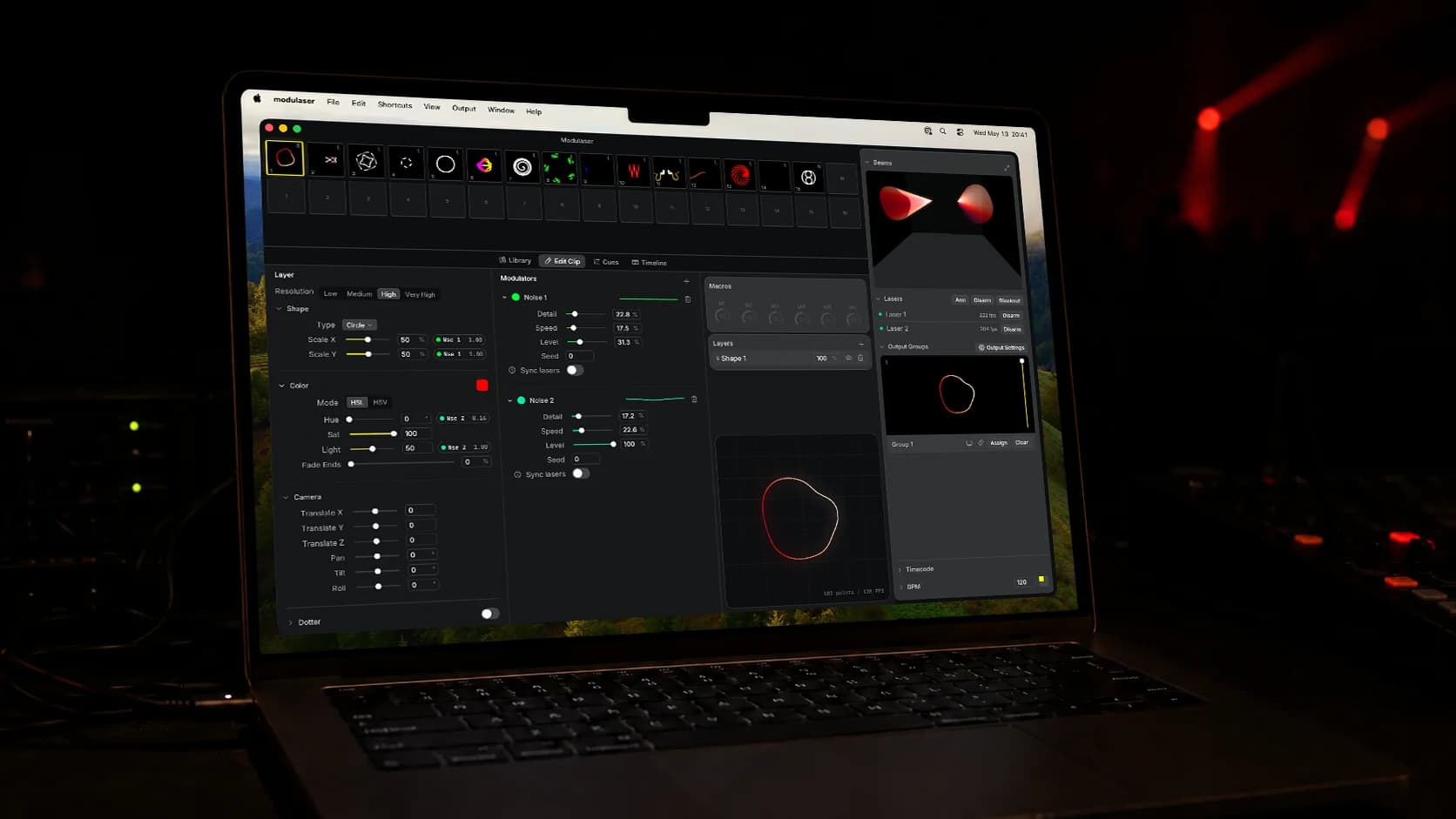
Before You Start
You'll need:
- A laser projector with ILDA input.
- A DAC: Helios, LaserCube, Ether Dream, IDN, ShowNET (macOS and Windows only), or AVB. See the Outputs section for hardware-specific setup.
- Modulaser installed.
- A flat surface to project onto: a wall, screen, or stage element.
- The projector's safety interlock and key switch ready to engage.
How Modulaser Routes Your Visuals
Modulaser keeps visuals, routing, and hardware separate. Three concepts, in order:
- Clips are the visuals you build: patterns, audio-reactive scenes, node graphs, ILDA files.
- Output Groups are the routing layer. A group decides which lasers receive which clips.
- Lasers are your hardware. Each laser handles its own projection mapping and safety settings.
Clips never address a laser directly. They go to a group, and the group fans them out to every laser inside it. Once this clicks, the rest of the app follows the same pattern.
Your First Output
The steps below assume your DAC and projector are physically connected. If not, start with the setup guide for your DAC and come back here.
1. Add a laser
Open Modulaser. In the Output Groups panel, click Output Settings (the gear icon), or use View → Lasers (CmdCtrlCmd/Ctrl + L). Press + in the Lasers list to add a laser, then assign your connected DAC under the DAC dropdown on the Settings tab.
You'll see a default Laser 1 with a small centered projection area. That's expected; you'll calibrate it later in Projection Mapping.
2. Create an Output Group
Still in Output Settings, press + in the Output Groups list to create a group. On the group's Settings tab, drag your laser from Available into In Output, then close Output Settings.
A group with no lasers can still receive clip assignments, but nothing plays until a laser is attached.
3. Pick a clip
Make sure your clip deck has a clip on it. If the deck is empty, open the Library (View → Library or CmdCtrlCmd/Ctrl + 1) and click any clip in Beam Visuals or Modulaser Classic Defaults to drop it on the deck.
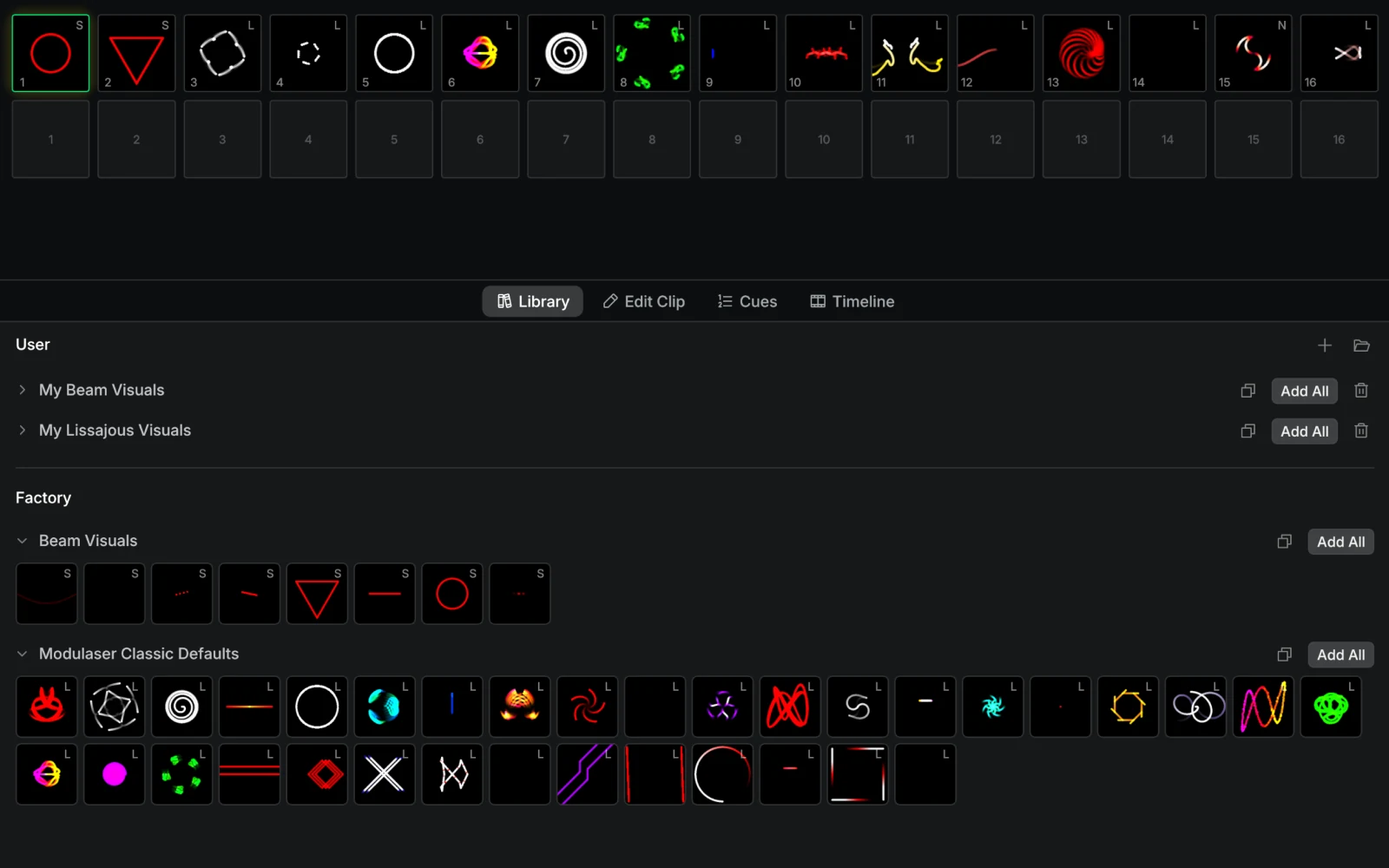
The clip plays in your preview window immediately. It is not yet routed to the laser.
4. Assign the clip to your group
Click the clip on your deck to select it. Then click Assign on your Output Group card. The clip routes to every laser in that group.
Assign works on the selected clip, so select one first. Once a clip is selected and the group has a laser, Modulaser may highlight the button as a hint.
5. Arm the laser
Click Arm in the right panel. The laser starts emitting.
If nothing appears on the wall, confirm the DAC is selected on the laser, the projector's safety interlock and key switch are engaged, and the ILDA cable is firmly seated.
6. Calibrate alignment (recommended)
Your output probably lands in a small centered square, the default projection area. Open the Projection Map tab on your laser and drag the corners outward to fit your surface. See Projection Mapping for the full procedure.
While you're at it, run the Calibration Wizard from the Output Settings window to tune scan speed, color, blanking, and brightness for your laser. See Improve Laser Output.
7. Save your project
File → Save. The project file stores your clips, cues, timeline, and effects. Lasers, corner positions, output groups, and laser profiles are saved automatically in Modulaser's settings and shared by every project. Clip assignments aren't saved; when you reopen, you'll assign again. To move a laser setup to another machine or venue, use Export settings… and Import settings… in the ⋯ menu of Output Settings.
Troubleshooting
- Nothing on the wall when I arm. Check the laser is connected to the DAC, the DAC is recognized, the interlock and key switch are engaged, and the laser is in the active Output Group.
- My clip plays in the preview but not on the laser. You probably haven't assigned it yet. Select the clip on the deck, then click Assign on the group.
- Nothing happens when I click Assign. No clip is selected. Click a clip on the deck first.
- I assigned a clip but the laser shows something else. A laser can be in multiple Output Groups. The most recently assigned group wins. Clear the other groups, or assign on the group you want active.
Where to Next
You have a clip on the laser. From here:
- Projection Mapping: align the output to a real surface.
- Improve Laser Output: tune scan speed, blanking, and color with the Calibration Wizard.
- Audio Reactive: make visuals react to live sound.
- MIDI and OSC: add hands-on control from hardware or apps.
- Library: save patterns into reusable packs.
- Multiple Lasers: scale to more lasers and route them across zones.