How to Improve Your Laser Output
Your content looks great in the preview, but the laser tells a different story. That's normal. Galvos are physical mirrors with real inertia, and they can't reproduce every shape at every speed. This guide walks through the settings that close the gap between preview and output.
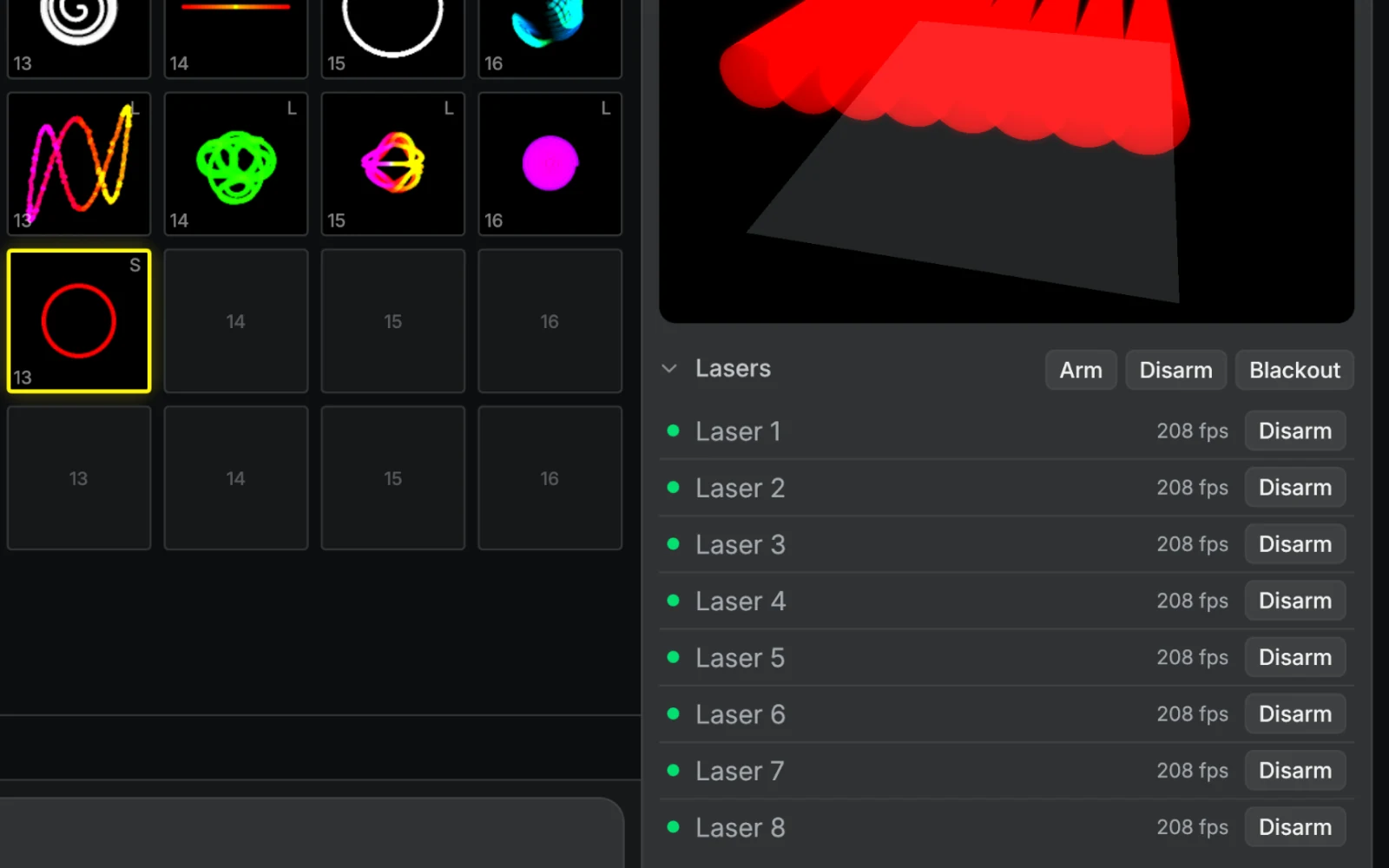
Most of these settings live in your laser profile. Open the Output Settings window to create or edit profiles. A profile defines the hardware characteristics of a specific laser model: color response, scan timing, blanking, and motion behavior. Multiple lasers can share one profile if they're the same hardware.
Use the Calibration Wizard
The fastest way to set up a profile is the Calibration Wizard. Open it from the Output Settings window: select a profile and click Start wizard in its Calibration row. It walks through the core calibration settings in order, activating a relevant test pattern at each step so you can tune with live laser feedback. Lasers are put into test mode automatically and restored when you finish.
The order matters: color shift comes first so later visual checks aren't thrown off by misaligned color, and voltage and gamma come before motion tuning so you can judge brightness accurately.
| Step | Setting | What to look for |
|---|---|---|
| 1 | Profile type | TTL for binary on/off lasers, Analog for everything else |
| 2 | Color shift | Both horizontal lines switch exactly at the red reference line |
| 3 | Diode threshold | Raise each channel's min voltage until the dimmest row is just visible |
| 4 | White balance | Lower each channel's max voltage until the brightest row looks neutral white |
| 5 | Gamma | Brightness rows look evenly spaced; unlink for mixed diode types |
| 6 | PPS | Raise until flicker is gone, back off if corners distort |
| 7 | Scan preset | Star shows corner sharpness, circle shows smoothness; pick a balance |
| 8 | Transition dwells | Clean transitions, no tails or ghosting |
| 9 | Verify | Review the full ILDA test pattern, jump back to fix anything off |
The sections below explain what each setting does in detail, useful if you want to fine-tune individual values later. That includes settings the wizard doesn't cover: corner settle, dot dwell, brightness compensation, and path routing.
Profile types
Most lasers use the Analog profile type, which applies gamma correction and voltage scaling per channel. If your laser has TTL diodes with no analog modulation, select the TTL profile type. In TTL mode, input below 50% turns the channel off and input at or above 50% outputs the channel's maximum voltage. Minimum voltage is ignored.
Points per second (PPS)
PPS controls how many points the DAC sends per second. Higher PPS scans faster but leaves less time per point, which can degrade quality on slow galvos.
- 20k–30k: Safe for most galvos. Good balance of speed and quality.
- 40k+: Requires a scanner rated for that speed at 8° ILDA. Slower scanners will distort or miss corners.
- Below 20k: Visible flicker, but useful for very complex content where accuracy matters more than refresh rate.
PPS ratings are angle-dependent. A scanner rated at 30kpps is rated at a specific scan angle (typically 8° ILDA). At larger angles, common in atmospheric beam shows, the galvos cover more distance per point and need more time to settle. Reduce PPS below the rated speed to maintain quality at wide scan angles.
Your DAC sets a ceiling too. A Helios DAC, for example, tops out at 65,535 PPS. Check your DAC's guide under Outputs before raising PPS past 60k.
Optical refresh
PPS is the DAC stream rate. Optical refresh is how often the full frame is redrawn on the wall.
optical refresh = PPS / presented points
At 30,000 PPS, a frame with 1,000 presented points refreshes at about 30 Hz. A frame with 2,000 presented points refreshes at about 15 Hz, which will usually flicker.
Presented points include the visible strokes and the output work around them: corners, dots, blanked travel between paths, transition dwells, and the repeat transition from the end of the frame back to the start. A large projection map also costs more because the galvos travel farther per frame.
If a laser's fps badge on the Lasers board turns amber (below 35 fps) or red (below 20 fps), start by reducing the amount of work in the frame: shrink the projection map, test a simple shape, reduce path count, or use faster scan and transition settings only if your projector can track them cleanly.
Drawing speed and motion response
Modulaser models galvo motion to decide where points land. Straight segments get wide point spacing at cruise speed; curves and corners get dense clusters from deceleration. Sharp corners also get a short settle dwell so the galvos can ring down before the beam moves on.
These settings control the behavior:
- Drawing speed (u/s): The maximum lit traversal velocity in laser-space units per second. Higher = fewer points per path, faster scanning. Lower = denser output, more detail.
- Motion response (%): How quickly the scanner changes speed and direction while drawing: accel out of vertices, braking into them, and how much speed it carries through curves. Higher = sharper, more aggressive motion. Lower = smoother, more cautious slowdowns.
- Corner settle (µs): How long the beam holds at a sharp corner to let the galvos settle before drawing the next segment. Raise it to clean up rounded, hooked, or torn corners; set too high, it wastes point budget. It scales with turn angle automatically, so a hairpin gets more settle time than a gentle bend. Set it to 0 to disable corner dwell.
- Motion response brightness compensation (%): Dims the places where the scanner slowed down (sharp corners, tight curves, reversals) so brightness stays even along the stroke. At 100%, the default, deposited brightness is constant. Lower it if you want slow regions to brighten naturally.
- Dot dwell: The maximum DAC samples spent on a dot at full brightness. Higher values make dots stronger, but they also spend more point budget. A safety limit on stationary beams caps the length, so raising it past the cap does nothing until you shorten the lit holds or lower PPS.
Drawing speed and motion response are coupled so motion feel stays constant when you change drawing speed. Doubling drawing speed at the same motion response emits the same shaped velocity profile, just faster. You don't have to retune corners every time you change speed.
Scan preset
The Scan preset applies drawing speed and motion response together as a starting point. It's not a saved field; the individual values are what persist. Adjusting either after picking a preset is fine.
| Preset | Drawing speed (u/s) | Motion response (%) | Best for |
|---|---|---|---|
| Detailed | 100 | 30 | Complex content, cautious scanner motion |
| Balanced | 200 | 50 | General use |
| Fast | 400 | 70 | Simple geometry, highest optical refresh |
Detailed gives the galvo maximum time to track every bend. Fast sacrifices some corner accuracy for higher refresh rate, which works well for circles, lissajous, and other smooth shapes.
Transitions
When the beam moves from one path to the next, Modulaser inserts a 5-phase transition: lit hold at the source, blank hold at the source, the travel move itself, blank hold at the destination, lit hold at the destination. Four dwell times are configurable (all in microseconds):
| Setting | Default | What it does |
|---|---|---|
| Lit hold before travel | 100 µs | Lit hold at the end of a stroke. Ensures the endpoint is fully drawn before blanking. |
| Blank hold before travel | 0 µs | Blanked hold at the source. Lets the galvo fully stop before jumping. |
| Blank hold after travel | 600 µs | Blanked hold at the destination. Lets the galvo settle before the beam turns on. |
| Lit hold after travel | 65 µs | Lit hold at the start of the new stroke. Gives the galvo extra settling time before drawing begins. |
The Travel speed preset controls the pace of the blanked S-curve move between lit paths:
| Preset | Travel speed | Best for |
|---|---|---|
| Gentle (default) | 600 u/s | Cautious blanked travel for scanners that need more settling time |
| Balanced | 800 u/s | General use |
| Aggressive | 1500 u/s | Faster blanked travel when path transitions are using too much point budget |
Faster travel can improve optical refresh because less time is spent moving while blanked. If you see ghosting, smeared starts, or unsettled path ends, back off to Balanced or Gentle, or increase the destination dwell.
Travel points between the two blanked dwells are computed automatically from distance and PPS to stay within motion safety limits. This is a hardware safety concern, not just quality: galvo drivers have a slew rate limit, and large blanked jumps with too few points can cause voltage spikes that overheat the amplifier.
Two profile toggles cut travel further. Optimize path order reorders strokes so the beam covers less blanked distance between them, and is on by default. Allow path reversal lets that reordering flip a stroke's direction when it shortens travel, and is also on by default. Turn reversal off when stroke direction carries meaning, such as a color transition along a path or a calibration pattern.
Tuning tips:
- Tails or streaks at path ends: Increase lit-before or blank-before. The beam is turning off before the galvo has stopped.
- Dots at path starts: Reduce lit-after or blank-after. The beam is dwelling too long at the start position.
- Flickering or dim output: Reduce all dwell values. Too much time is spent on transitions instead of drawing.
- Slow refresh on path-heavy content: Try Aggressive travel speed. If starts or ends smear, return to Balanced and simplify the content instead.
- Ghosting between paths: Increase blank-before and blank-after. The galvo hasn't settled before or after travel.
Color shift
Color shift offsets color data relative to XY position by a time delay (in microseconds). It compensates for the difference in response time between galvo mirrors (which move physically) and laser diodes (which switch nearly instantly).
Without color shift, colors bleed past corners: the laser changes color at the right time, but the galvo hasn't caught up yet. The range is 0–500 µs; typical values are 50–200 µs depending on galvo speed. Increase color shift until both color edges land exactly on the corners.
Gamma correction
Gamma controls the brightness curve for each color channel. The default (γ = 2.2, the sRGB standard) compresses mid-tones so brightness ramps look perceptually even. Higher gamma compresses mid-tones more aggressively.
| Gamma | 50% input | Effect |
|---|---|---|
| 1.0 | 50% output | Linear, no correction |
| 2.2 | ~22% output | Perceptually even (default) |
| 3.0 | 12.5% output | Aggressive mid-tone compression |
The gamma controls have a link toggle. When linked, all three channels share one slider. Unlink to adjust channels independently, useful when different diodes have different brightness curves (common with mixed direct-diode and DPSS systems).
When to adjust:
- Mid-range colors appear too bright: increase gamma.
- Gradients show color shifts: adjust per-channel gamma to correct.
- White balance drifts when dimming: per-channel gamma fixes color temperature changes across the brightness range.
- DPSS green behaves differently from direct diodes: give green a higher gamma than red and blue.
Voltage range
Each color channel has independent min/max voltage settings. Use them to:
- Reduce maximum power on a channel (lower the max).
- Set a minimum "on" threshold for diodes that need it (raise the min).
- Correct channel imbalances by giving each color a different range.
Resolution
The Resolution setting (Low, Medium, High, Very High) controls the density of source geometry before the scanner runs. Higher resolution gives the scanner more geometric detail to work with; lower resolution reduces input complexity. Resolution and scanner settings are independent: resolution determines source fidelity, scanner parameters determine output quality.
Resolution has the most visible impact on geometry-based sources like shapes, SVG paths, OBJ meshes, and text. Lower density produces visibly coarser curves and rounded corners. For parametric sources (Lissajous, Parametric Curve), the effect is minimal because even Low resolution captures smooth parametric curves accurately.
Scale and projection
A common issue is the laser trying to draw at a scale that's too large for its galvos. Two ways to fix this:
- Use a projection map to reduce the output size without affecting the Modulaser preview.
- Adjust the scale knob, which affects both the preview and the laser output.
Either way, reducing the scan area improves line accuracy because the galvos cover less distance per point.
Beam appearance (preview only)
These settings only affect the 3D beam preview and have no effect on actual laser output. They let you match the preview to your real hardware for an accurate visualization.
| Setting | Range | Default | Description |
|---|---|---|---|
| Divergence | 1–10 mrad | 3 mrad | How quickly the beam spreads over distance. Higher = wider cone. |
| Scan angle | 20–80° | 45° | Total optical deflection angle. Affects how wide the projection appears in the preview. |
| Power | 0.5–100 W | 5 W | Simulated output power. Affects beam brightness and glow. A 30 W laser renders 6× brighter than the default 5 W. |
Configured in the profile's 3D preview section.
Common issues
Output flickers or feels slow. Shrink the projection map first so the galvos cover less distance per frame. Then test with a simple circle or Lissajous. For simple geometry, try Scan > Preset > Fast. If the content is still heavy, reduce paths, corners, layers, dots, imported points, or vectorized detail. If the output is dim or spends too much time between paths, reduce transition dwell values or try Transitions > Travel speed > Aggressive. If corners distort, ghosting appears, or starts and ends smear, back off to Balanced or Detailed settings.
Simple shapes only flash or drop out. Treat this as a connection or output stability problem before tuning the laser profile, especially with LaserCube network output. Use Ethernet when possible, close LaserOS or other laser apps, check the cable and power, and make sure you're running the current Modulaser version.
Corners are rounded or overshot. Raise corner settle to give the galvos time to settle at each vertex. You can also lower drawing speed or motion response, or switch to the Detailed preset. If the issue is only at specific points, increase blanking dwells.
Colors bleed past corners. Increase color shift. Start around 100 µs.
Brightness ramp looks uneven. Increase gamma. Try γ=3.0 if 2.2 isn't enough. For mixed diode/DPSS systems, unlink and adjust per channel.
Small text or fine detail looks broken. Switch to the Detailed preset for denser, more cautious traversal. Reduce drawing speed.
Image drifts or wobbles on long cable runs. Almost always a cable or grounding issue, not a profile problem. The ILDA DB-25 standard specifies differential signaling, but many consumer units use single-ended wiring, making them vulnerable to ground loops and EMI. Check cables and grounding before touching profile settings. No amount of tuning will fix a noisy signal path.
Still not accurate enough. Simplify the content. Fewer lines, corners, and edges mean less work for the galvos and a cleaner result.