Multiple Lasers
Modulaser can drive any number of lasers simultaneously. Each laser gets its own DAC assignment, projection mapping, and safety settings.
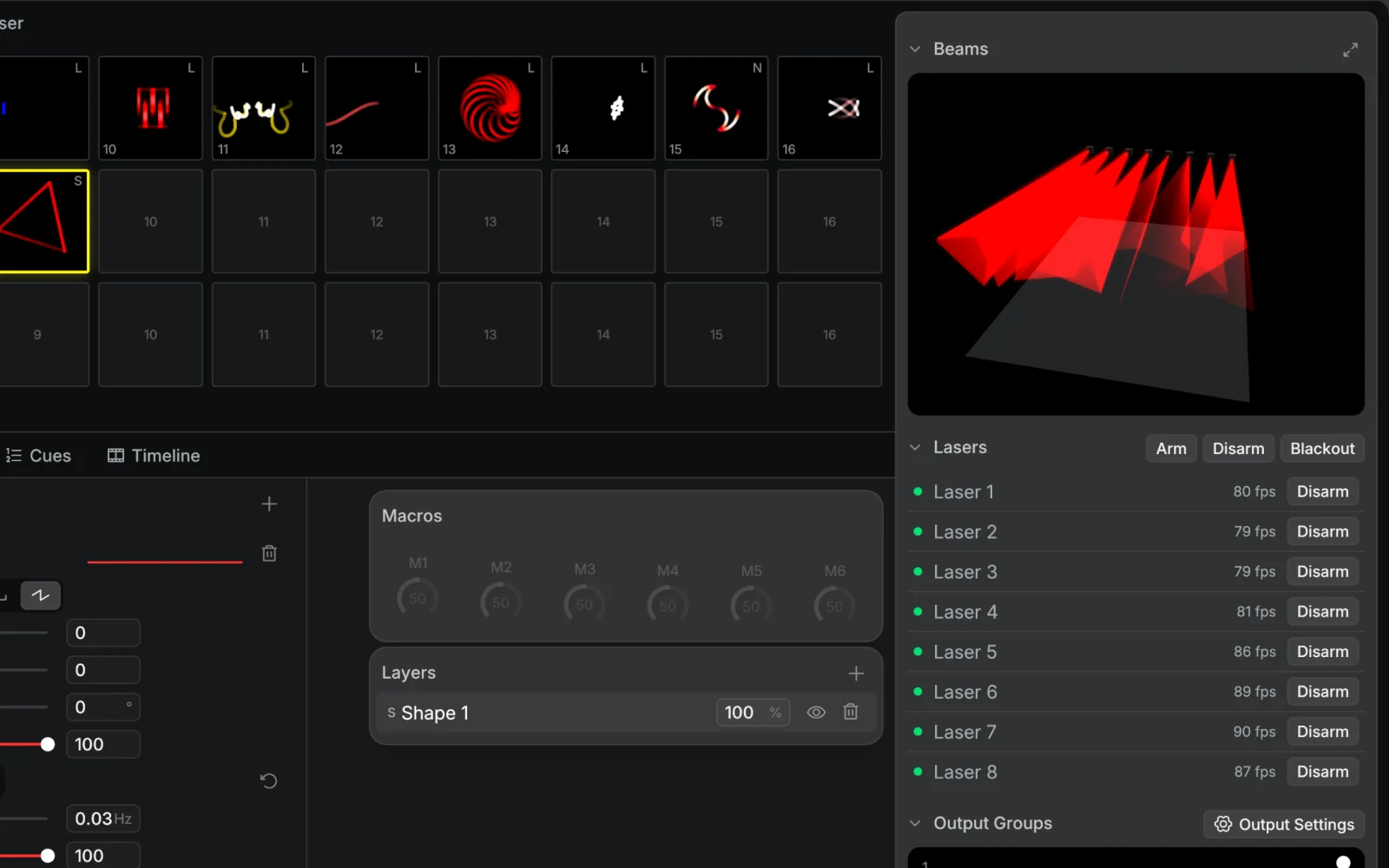
Output Groups
Output groups are how you route clips to lasers. Instead of assigning a clip directly to a laser, you assign it to a group, and the group contains one or more lasers.
This indirection is what makes multi-laser setups flexible. You can organize your lasers by physical location, purpose, or zone, and then send different clips to different groups during a show.
A few examples:
- Behind DJ: two lasers mounted behind the booth, aimed at the audience
- Stage Left / Stage Right: one laser per side for symmetric looks
- All Lasers: a group containing every laser, for full-room moments
- Aerial: overhead lasers angled for mid-air beam effects
A laser can belong to multiple groups. When that happens, the most recently assigned group wins, so you can layer groups knowing that a fresh send always takes priority. Clearing a group reveals the previous assignment underneath.
Each output group has an opacity setting that dims all lasers in the group. Control it from the panel, or map it to a fader via MIDI or OSC for live intensity control.
Output groups can also have their own Effects chain. Use it for looks that should apply after the clips are rendered, such as Strobe, Colorize, Chase, Scale Pulse, Flash, and Rotation.
Setting Up Groups
Create output groups in Output Settings (Output Settings on the Output Groups panel): press + in its Output Groups list, then add lasers in the group's details. Send clips to groups from the Output Groups panel using the group buttons, by dragging a clip onto a group card, or with keyboard shortcuts, MIDI, or OSC. You can also drive group assignments from the Timeline or Cues for fully sequenced shows.
For a fast live workflow, set a group as the live target with its monitor button. Hovering a clip previews it through that group, and clicking commits it, so the clip comes out of the lasers the moment you click, no separate send needed. Output only appears once the group's DAC is armed.
Alt-click a clip to send it to the focused group instead, or to the last group you used when none is focused.
The right panel has Arm and Disarm buttons. Arm arms every connected DAC that has a laser assigned, and Disarm disarms every armed DAC, so you don't have to arm each one individually.
Positioning in the 3D Beam View
The 3D Beam View is a preview that simulates your laser beams projecting into a virtual room. Use it to plan where each laser sits in physical space before you're at the venue. It opens in its own window (CmdCtrlCmd/Ctrl + B, or double-click the Beams preview), and laser selection and nudging happen there.
Click a laser in the 3D Beam View to select it, then nudge it with the keyboard:
← → ↑ ↓moves on X/YW/Smoves on depthQ/Erotates yawA/Drotates pitch- Hold
Shiftwith any of these for larger steps
Per-laser settings in the 3D Beam View:
- Position: X, Y, Z placement relative to the room walls and floor
- Yaw / Pitch: rotation of the laser's projection direction
How the beam looks is set in the laser profile, under 3D preview in Output Settings, and applies to every laser that uses the profile:
- Scan angle: optical field of view (20–80°), controls projection size at distance
- Divergence: beam spread rate (1–10 mrad), affects how beams look in haze
- Power: brightness (0.5–100W), normalized to a 5W reference so mixed-wattage setups render realistically
The room dimensions are adjustable too, set them to match your venue and the preview becomes a reliable planning tool. A human reference figure gives you scale.
Only lasers assigned to output groups appear in the 3D Beam View, so set up your groups first.
Chase
Chase sequentially activates lasers within an output group over time, like a moving spotlight that travels across your laser array. Chase is available as an output-group effect and as a Laser Chase node in the node graph. Instead of all lasers showing the same clip simultaneously, Chase lights them up one at a time (or a few at a time), creating sweeping movement across the room.
To use it on an output group, add the Chase effect to the group's chain with Add Effect.
Chase Parameters
- Rate: how fast the spotlight moves across the group, as a multiple of the tempo from bpm/32 up to 8×bpm (default 2×bpm).
- Width: how many lasers are lit at once. At 1, exactly one laser is lit at a time, and below 1 gaps of darkness open between lasers. The Chase effect's Width tops out at 1 (default 0.35), so lighting several lasers together takes the Laser Chase node, where Width goes up to 16.
- Fade: crossfade between adjacent lasers. At zero, it's a hard cut from one laser to the next. Increase Fade for a smooth roll across the array.
Rate, Width, and Fade can be mapped with MIDI and OSC so you can modulate the chase live from a controller.
When to Use Chase
Chase works well for:
- Sweeping a beam pattern across a row of lasers behind a DJ or stage
- Creating a "scanner" effect that moves left to right across the venue
- Rhythmic laser hits that march across the room on each beat (set Rate to a beat division and keep Width low)
- Building energy by starting with one laser and gradually widening the chase with the Laser Chase node until all lasers are firing
Phase Spread
Phase Spread offsets the animation phase per laser, so the same oscillation plays at a different point in its cycle on each laser. Where Chase controls which lasers are on, Phase Spread controls where each laser is in the animation. In the node graph, use the Laser Index node to build custom per-laser behavior.
With four lasers and Phase Spread at 100%, the full animation cycle is distributed evenly: laser 1 starts at 0%, laser 2 at 25%, laser 3 at 50%, laser 4 at 75%. Lower values compress the spread: at 50%, the offsets become 0%, 12.5%, 25%, 37.5%.
Phase Spread is available on oscillator phasors (X, Y, Z), the shape phasor, and the dotter phasor. Each has its own independent spread parameter. The Phase Spread knobs appear once you have two or more lasers, or when Settings → General → Always show multi-laser controls is on.
What It Looks Like
- X oscillator spread: a Lissajous pattern that waves across the laser array, each laser slightly behind the last
- Shape phasor spread: a rotating shape where each laser shows a different rotation angle, creating a fan effect
- Dotter phasor spread: dotted patterns that fire sequentially across lasers
Phase Spread creates coordinated movement without any extra patching. One clip, one output group, and a single spread parameter turns a static wall of lasers into a rolling wave.
Combining Chase and Phase Spread
Chase and Phase Spread work on different axes, so you can use both at once. Chase controls laser brightness (on/off), Phase Spread controls animation timing. A common combination: set Chase to sweep slowly across the array with a wide fade, and add Phase Spread on the X oscillator so the pattern rolls through space as it moves between lasers.
Reusing a Projection Map
Calibrate one laser to the venue, then share its corner mapping with the others without touching their DAC or output assignments. Right-click the calibrated laser in the Output Settings window, choose Copy, then Paste projection map onto each of the others. It copies the corner positions and the mapping mode only.
For venues where the laser is mounted off-axis, set Mapping to Perspective on a laser's projection map to map its corners with homography instead of the default linear (bilinear) interpolation. This keeps straight lines straight when the projection surface is at an angle.
Paste all settings also copies the laser profile, blind zones, and stream outputs, and it disarms all DACs, so use it before you go live.
Shared DAC Setups
Multiple lasers can share the same DAC. Only one outputs at a time: the laser with an active clip assignment takes priority. This lets you create preset-like workflows: set up several lasers with different projection mappings or profiles for the same physical projector, then switch between them via output groups.
Import and Export
Lasers, output groups, and laser profiles are saved with Modulaser, not in the project file, so every project you open uses the same rig. Output group effect chains are saved per project.
Export from the Output Settings window. Pick which output groups to include, and the lasers and laser profiles they reference are bundled automatically into an output-settings.json file. Importing never overwrites your existing setup: everything comes in as new items, and anything with a matching name gets an "(imported)" suffix so you can tell the two apart. DAC assignments are preserved, so reassign them if the hardware differs.
Tips
- Start simple. One output group with all your lasers, one clip, and Phase Spread on a single oscillator already looks great.
- Set the Chase Rate to a beat division for rhythmic movement that locks to the music.
- When building a set, create groups by location (front, back, sides) and by purpose (aerial, graphic, audience). A laser can be in multiple groups.
- Use the 3D Beam View to plan multi-laser layouts before you're on site. Match the room dimensions to your venue and position each laser where it will actually go.
- Phase Spread parameters make excellent Macro targets. Map them to a controller knob for live modulation.
- Duplicate a laser to create a variant with the same projection mapping and profile but no DAC assignment and with NDI, Syphon, Spout, and PONK output off.