Use Ether Dream with Modulaser
Modulaser connects directly to Ether Dream DACs over Ethernet, including Ether Dream 1, 2, 3, and 4. Use it to patch laser scenes with nodes, sequence clips on the timeline, control shows live, and output to any ILDA projector connected to your Ether Dream.
You can try Modulaser for free on macOS, Windows, and Linux.
Got an Ether Dream? Download Modulaser, connect the DAC over Ethernet, and select it as the DAC for a Laser. The free version is enough to test your setup.
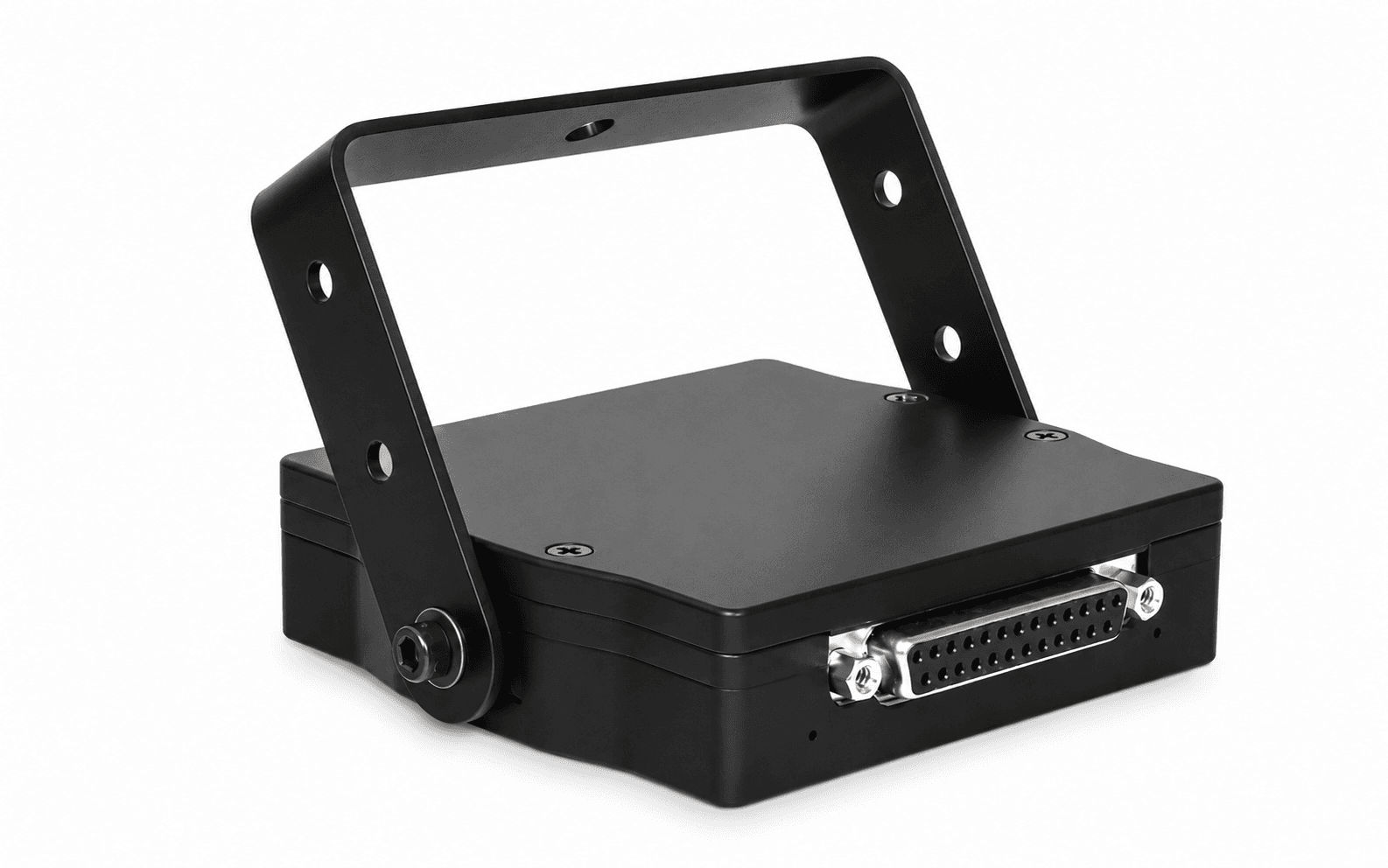
What You Can Do
- Patch laser scenes with nodes instead of drawing static frames.
- Sequence clips on the timeline or trigger them live.
- Route output to one or more lasers with output groups.
- Tune scan speed, blanking, color, dwell, and PPS with the Calibration Wizard.
- Use MIDI, OSC, audio input, or BPM sync for live control.
What You Need
- An Ether Dream 1, 2, 3, or 4.
- A laser projector with an ILDA input.
- An ILDA cable between the Ether Dream and projector.
- An Ethernet connection between the Ether Dream and your computer or network.
- Modulaser for macOS, Windows, or Linux.
Setup
- Connect the Ether Dream to your laser projector with an ILDA cable.
- Connect the Ether Dream to the same network as your computer via Ethernet.
- Open Modulaser.
- Open Output Settings with View → Lasers (
CmdCtrlCmd/Ctrl + L), or with Output Settings on the Output Groups board. - In the Lasers list, press + to add a laser, then under DAC select your Ether Dream device.
- In the Output Groups list, press + to add a group, then drag your laser from Available into In Output.
- Close Output Settings, then select a clip, or open the Library and pick a preset if you don't have any yet.
- Press Assign on the output group to assign the clip to it.
- Press Arm in the right panel to start output.
Calibration
Once output is working, open the Output Settings window and run the Calibration Wizard on your laser profile. The wizard shows test patterns for scan speed, blanking, color, and quality, so you can tune the Ether Dream and projector with live feedback. See Improve Laser Output for details on what each setting does.
Never look directly into the laser beam. This can cause permanent eye damage. Read more in our Laser Safety guide.
Troubleshooting
If the Ether Dream isn't showing up in Modulaser:
- Check scan settings: Make sure Ether Dream is checked under Scan for in Settings.
- Check the network connection: The Ether Dream and your computer must be on the same local network. Make sure the Ethernet cable is plugged in and the link light is active.
- Check your firewall: Modulaser uses UDP for device discovery. If you have a firewall enabled, make sure it isn't blocking Modulaser's network access.
- Try a direct connection: Connect the Ether Dream directly to your computer with an Ethernet cable, bypassing switches or routers, to rule out network issues.
- Update the firmware: If you're having connection problems, update your firmware and run the Ether Dream diagnostic tool.
- Close other apps: If another application is using the Ether Dream, Modulaser may not be able to access it. Quit any other laser software that might be connected.
- Check the ILDA connection: Make sure the ILDA cable is firmly seated on both the Ether Dream and your projector.
- Check your projector's safety interlock: Most laser projectors have a key switch or interlock that must be enabled before the laser will emit. Make sure the key is turned and the interlock is disengaged.
FAQ
Does Modulaser support Ether Dream 4?
Yes. Modulaser supports Ether Dream 1, 2, 3, and 4 over Ethernet.
Does Ether Dream need drivers?
No. Ether Dream connects over the network, so Modulaser discovers it without a USB driver. Your computer and Ether Dream need to be on the same local network.
Can I connect Ether Dream directly to my computer?
Yes. You can connect the Ether Dream directly to your computer with an Ethernet cable. If it does not appear, check your network settings and try the Ether Dream diagnostic tool from the official downloads page.
Can I use multiple Ether Dream DACs?
Yes. Add a Laser for each Ether Dream device, then route clips through output groups. Run calibration for each laser profile before show use.
Why isn't my Ether Dream showing up in Modulaser?
Make sure Ether Dream scanning is enabled in Modulaser settings, confirm that the DAC and computer are on the same local network, and check that your firewall is not blocking UDP discovery. If another laser app is connected to the Ether Dream, quit it before opening Modulaser.