Image Mode
Image Mode lets you load files and display them on your laser. Modulaser supports vector formats (ILDA, AIFF/AVB, SVG, OBJ) as well as raster images (PNG, JPG, GIF, BMP, WebP).
Vector files go straight to the output pipeline since they already contain points and paths. Raster images are vectorized automatically. In the node graph, the File node loads ILDA, AIFF/AVB, SVG, and image files as a frame you can patch into other nodes. OBJ files and the playback controls are only available on the File layer.
Importing Files
Click Browse in the File input panel to open a file picker, or use the folder icon next to it to load a folder of SVG or OBJ files as an animated sequence.
You can also drag a file into Modulaser. It lands in the first empty slot on your clip deck, already loaded as a File clip.
The reload button next to the filename re-reads the file from disk, which saves a trip through the file picker while you're still editing artwork in another app.
ILDA Files
ILDA is the standard file format for laser content. Almost all laser show software can export it, so you can build content in another tool and bring it into Modulaser.
ILDA files contain one or more frames, each with a sequence of points that include coordinates, colors, and blanking markers. Files can use indexed color (palette-based) or true color (direct RGB per point). Modulaser handles both.
Turn on the Color board (the switch in its header) to replace the file's native colors with a single color that matches your show's palette.
Playback
ILDA files with multiple frames play back as an animation. Frame Rate sets how many frames play per second (25 by default). ILDA files don't store a frame rate, so set it to match the content. The Speed knob multiplies it: 1.0 is normal, higher values run faster, and negative values play in reverse. Use the frame scrubber to jump to any frame.
Five playback modes are available:
| Mode | Behavior |
|---|---|
| Loop | Wrap around at boundaries (default) |
| Bounce | Reverse direction at boundaries |
| Random | Jump to pseudo-random frames |
| Once → Clear | Play through once, then output an empty frame |
| Once → Hold | Play through once, then hold the final frame |
AIFF/AVB Files
LaserAnimation AIFF and AVB files (.aiff, .aif) store authored laser animations as audio data. Modulaser imports them into the same model it uses for ILDA, so point order, colors, and blanking carry over unchanged. They get the same playback controls and modes as ILDA files.
SVG Files
Modulaser converts SVG paths to laser points. If you have a vector file in another format, convert it to SVG first. In Adobe Illustrator, go to File > Save As and select SVG.
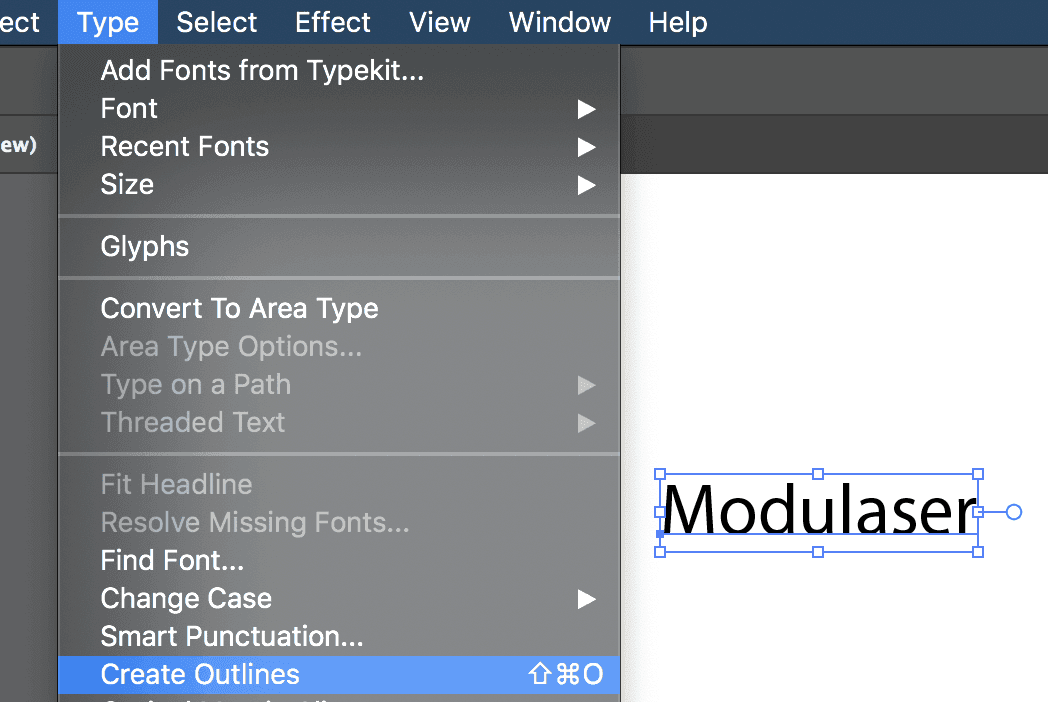
Modulaser's SVG parser supports "micro-SVG": basic paths, shapes, and transforms. JavaScript is not supported, and CSS support is limited. If your file uses a font, convert it to outlines first. In Illustrator, select your text and go to Type > Create Outlines.
Resolution
The Resolution setting (Low, Medium, High, Very High) controls how many laser points are used to draw the image. Points are distributed across all subpaths proportionally to their lengths. Lower resolution means less flicker but rougher curves. Higher resolution means smoother curves but the laser has more to draw per frame. Finding the right balance depends on your scanner speed and the complexity of the image.
If imported artwork flickers or feels slow on the projector, drop the resolution first, then tune the laser profile. See Improve Laser Output for how point count affects optical refresh.
Modulaser automatically reorders subpaths to minimize blanked travel, the invisible jumps between disconnected shapes. Near-black colors in the SVG are converted to white, since a black point on a laser is simply invisible.
SVG Sequences
To animate with SVGs, place multiple .svg files in a folder and load the folder using the folder browse button. Files are sorted naturally, so frame1.svg, frame2.svg, frame10.svg sort correctly. SVG sequences share the same playback controls and modes as ILDA files.
Raster Images
If you load a raster image (PNG, JPG, GIF, BMP, or WebP), Modulaser vectorizes it automatically using edge detection. Several controls shape the result:
- Aspect: contain within the frame, or stretch to fill.
- Threshold: edge detection sensitivity (0–255).
- Gamma: optional gamma correction before edge detection (0.2–3.0, off by default).
- Noise Reduction: blurs the image before edge detection so sensor or codec noise doesn't become contour points. Off, Low, or High.
- Smooth: smoothing passes on the detected paths (0–10).
- Color Smooth: smoothing passes on per-point color (0–3).
Raster images need more tuning than vector files to get a clean result. Start with Threshold and work from there.
OBJ Files
Modulaser can display 3D models from OBJ files as wireframe laser output. Edges are extracted from the mesh and projected to 2D.
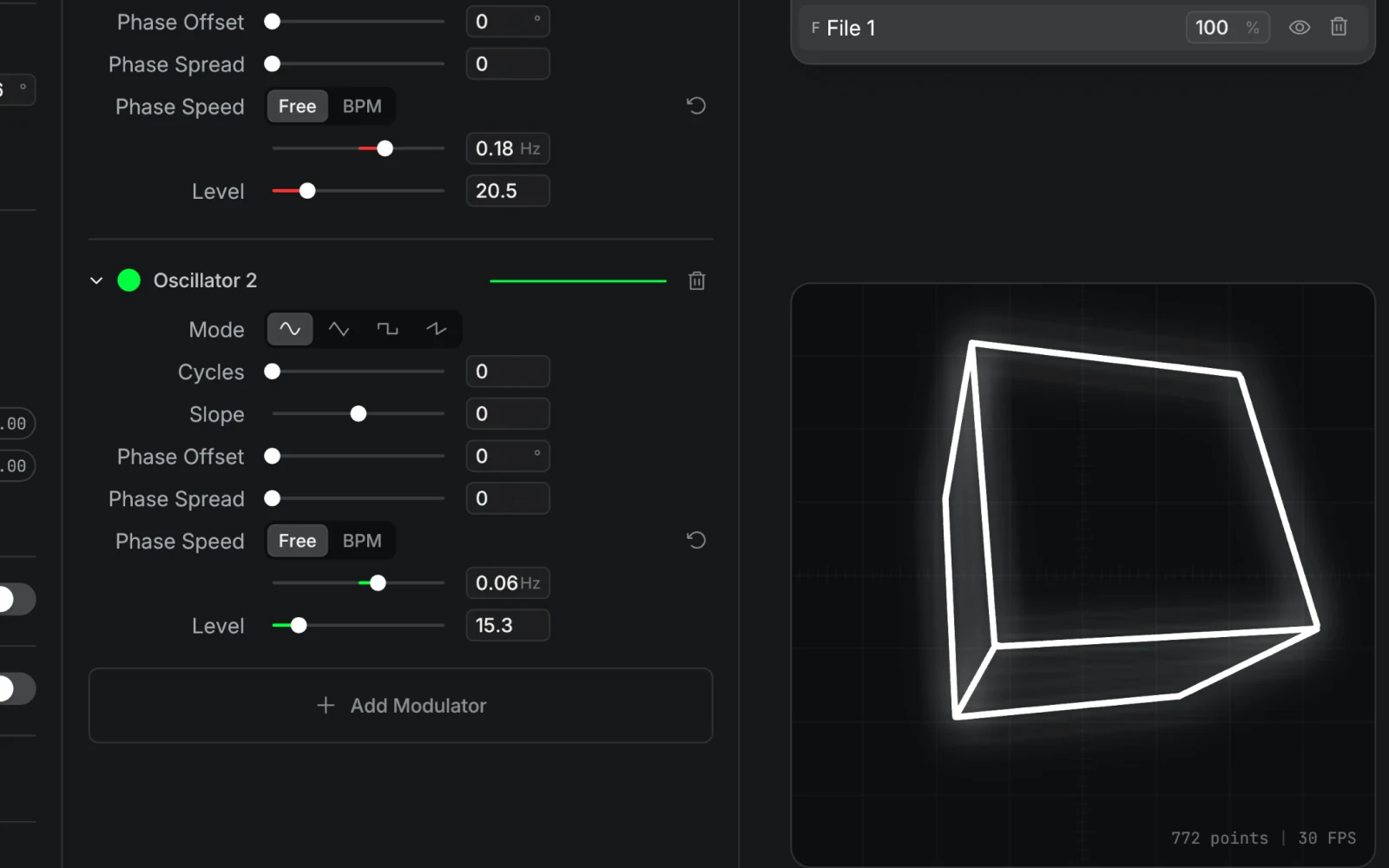
Four edge types are detected automatically:
- Silhouette: edges where a front-facing and back-facing triangle meet. These define the object's outline and update as the camera moves.
- Crease: edges where adjacent faces differ by more than the Crease Angle threshold. Structural features like the edges of a cube.
- Boundary: edges belonging to only one face (mesh borders).
- Non-manifold: edges shared by three or more faces.
Enable Suggestive Contours for additional surface detail on curved objects. The SC Strength knob controls how prominent these lines are.
Busy meshes can produce more lines than a scanner can draw cleanly. Min Length hides contour lines shorter than the set length, and Max Chains keeps only the longest ones. Resolution at the top of the clip controls also sets how many points the wireframe gets.
Two visibility modes control which edges are drawn:
| Mode | Behavior |
|---|---|
| Backface | Skip edges whose adjacent faces all face away from the camera (default) |
| Hidden Line | Also remove edges occluded by front-facing triangles |
Six knobs in the Camera board control the camera: Pan, Tilt, Roll (in degrees) and Translate X, Y, Z. All support MIDI and OSC modulation. Timeline automation on the camera isn't supported for OBJ: the output goes dark until you remove it.
OBJ sequences work the same way as SVG sequences. Load a folder of .obj files and they play as animation frames with the same playback controls.
Color Override
All file types support color override. When enabled, the file's native colors are replaced with a single color, useful for matching your show's palette or working with files that have no color information.
The Fade Ends knob fades the color at path endpoints for a softer look. In the node graph, the Colorize node provides the same color override with additional routing flexibility.