MIDI
Modulaser works fine with a mouse, but a MIDI controller gives you physical knobs and faders for real-time control. This makes a big difference during live shows, where reaching for a mouse isn't practical.
Any class-compliant MIDI controller works. Modulaser ships with built-in default mappings for two controllers:
Both work out of the box. Plug in, enable the device, and the default mapping loads automatically.
Setting Up Your Controller
Connect your MIDI controller and open Settings. Click the Devices tab. You'll see a grid of all detected MIDI devices, each with three checkboxes:
- In: enables the device as a MIDI input for controlling parameters
- Out: enables feedback output so Modulaser can update your controller's LEDs, motorized faders, and pad colors
- Clock: enables the device as a MIDI clock source for tempo sync
Each checkbox shows a connection indicator: a green dot when connected, a gray dot when the device is enabled but not plugged in.
Modulaser remembers your settings and reconnects automatically when the device reappears.
For the APC40 mkII or MIDI Fighter Twister, you get a working layout immediately. The Use default map button (next to the device row) restores the built-in mapping if you've changed it. Default mappings update automatically across releases, as long as you haven't customized them. Once you edit a default mapping, your version is preserved.
MIDI Learn
To create your own mappings, open MIDI learn mode:
- macOS: menu bar > Shortcuts > Edit MIDI…
- Windows / Linux: Edit > MIDI Learn
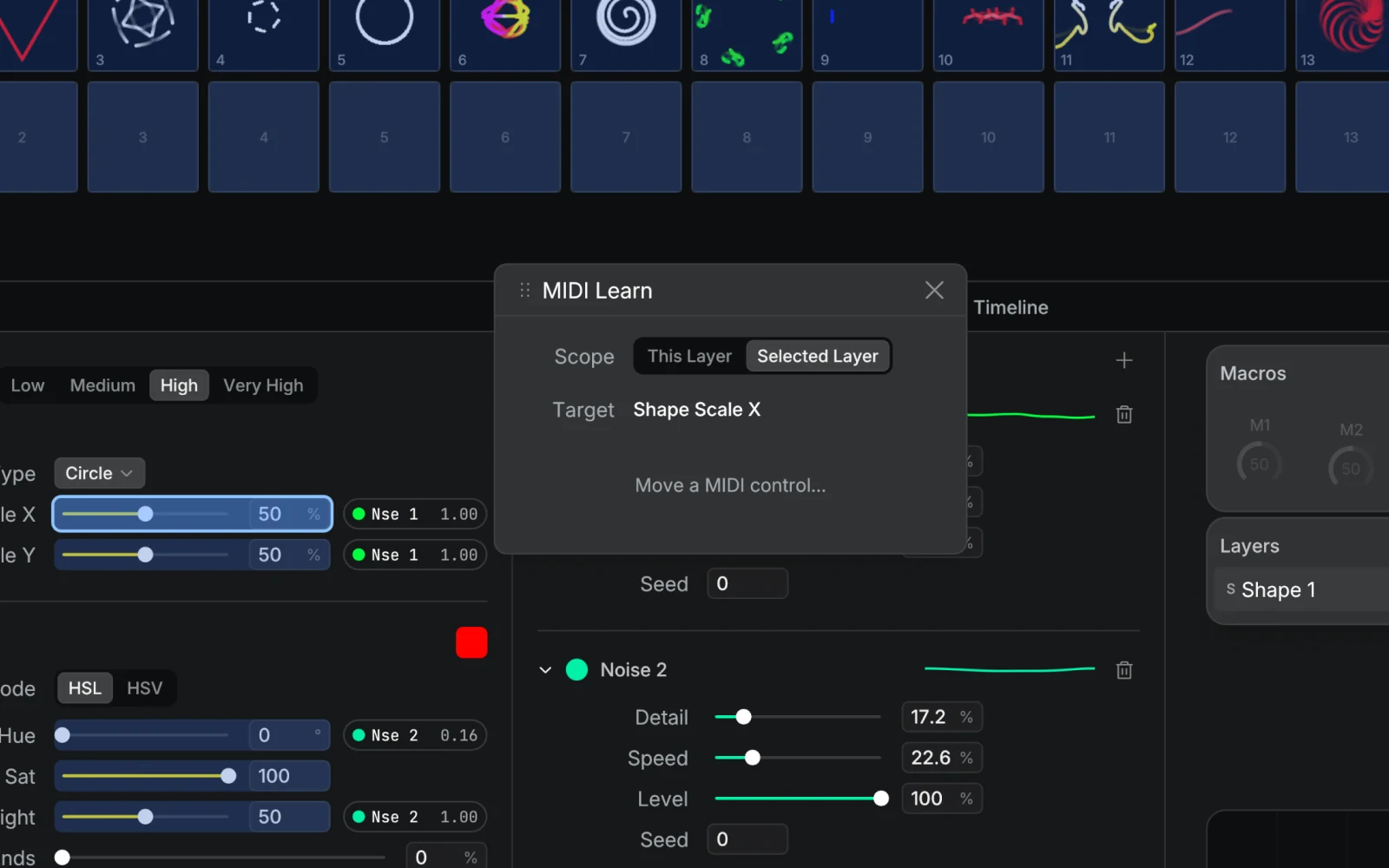
All learnable controls show a blue overlay with the current assignment. To map a control:
- Click a parameter in Modulaser to select it as the target (the border highlights).
- Move a knob, fader, or press a pad on your MIDI controller.
- The mapping is saved automatically.
The assignment label shows the MIDI channel and control number, for example 1/CC48 for CC 48 on channel 1, or 2/C#4 for note C#4 on channel 2.
To remove a mapping, right-click the blue overlay and select Clear.
Effect sync rates and colors can also get recall pads: buttons that jump straight to one value. In learn mode, click an effect's sync-rate dropdown, click a rate in the list that opens, then press a button. For a color control like Colorize's, click it to open the picker, click a palette swatch, then press a button. To recall a color that isn't in the palette, add it with + first. Clicking the sync-rate dropdown's own overlay learns a fader that steps through the rates instead.
Press Escape to exit learn mode. Only one learn mode (MIDI or OSC) can be active at a time.
The Learn Window
While in learn mode, a floating window shows details about the selected mapping:
- Target: the parameter you're mapping to
- Port, Channel, and Type (CC or Note), plus the CC number or note: the assigned control. Edit them by hand, or press Learn again to capture a new control. Clear removes the mapping.
- Range: min and max values (default 0.0 to 1.0). Narrow the range to limit a fader to a useful subset, or invert it by setting min higher than max.
- Mode: choose between Absolute (standard 0 to 127 faders and knobs) and Relative (endless encoders that send increment/decrement values). Range and Mode don't appear for on/off targets such as buttons, and Mode only appears for CC sources
- Scope: for output group parameters, toggle between This Group (fixed index) and Selected Group (follows your current selection). For layer-scoped clip parameters, toggle between This Layer (fixed index) and Selected Layer (follows the selected layer).
The window also has a dropdown listing all existing mappings for the active port, so you can jump to any mapping to review or edit it.
When remapping a target that already has a mapping, the existing range and relative settings are preserved. Only the source is updated.
What You Can Control
MIDI can control most of Modulaser:
Clip parameters: oscillator frequency, speed, and level; color hue, saturation, and lightness; transform position, scale, and rotation; duplicator settings; camera position and angle; and all modulator parameters (LFO, audio reactivity, envelope, sequencer). These target the currently selected clip.
Layers: select a layer by index, control layer opacity, or toggle layer visibility. These target a fixed layer index.
Output groups: send and clear clips per group, and control group opacity with a fader.
Effects: map scalar controls, switches, and enabled states for output-group effects, plus recall pads for sync rates and colors.
Global output: speed multiplier and blackout. Color and strobe live in the output-group effects above.
Macros: each clip has 6 macro slots. Map a MIDI knob to a macro, and it controls whatever parameter the macro is linked to. Macros are great for building a consistent control surface across different clips.
Tempo: set BPM directly, tap tempo, or resync the beat phase.
Cues: jump to a specific cue by index. The Twister default map also steps to the next and previous cue.
Timeline: play/pause, stop, skip forward/backward, Loop clip, and audio mute.
Clip selection: map pads to clip grid positions for quick clip triggering.
Bank shifting: the APC40 mkII default map scrolls the visible clip grid horizontally with an encoder, so a controller with few pads can reach more clips. It isn't available in MIDI Learn.
MIDI Input Node
A mapping drives one parameter. The MIDI Input node brings MIDI into a patch as a signal you can route, scale, and combine like any other value. Add it to a clip or effect graph, set the channel, source (CC or Note), and number, and it outputs the incoming value normalized to 0 to 1. Notes output their velocity and hold it until note-off.
Click Learn on the node to capture the next control you move.
The node doesn't care which port the message arrived on. It matches on channel and control number alone, so the same patch works with any controller sending that combination.
MIDI Clock
If your MIDI controller or another device sends MIDI clock, Modulaser can sync its tempo to it. Enable the Clock checkbox for the device in the Devices panel, then set the tempo source to MIDI in the BPM panel.
MIDI clock runs at 24 pulses per quarter note. Modulaser calculates BPM from the incoming clock signal and updates its tempo automatically once the sender transport sends Start or Continue.
Transport messages are supported: Start and Continue trigger a phase resync, Stop pauses clock tracking. If the clock stops, the tempo freezes at its last value and the beat grid keeps running at that rate. MIDI clock and Ableton Link are alternative tempo sources: choose one in the BPM panel, and only the selected source drives the tempo. See BPM Sync.
MIDI Time Code
Modulaser can follow MIDI Time Code (MTC) as a timeline source, locking playback to a DAW or other timecode master. MTC arrives over any port already enabled for input or clock, so no extra setup is needed beyond enabling the device. Select it as the timeline source and the timeline tracks the incoming position, including locate jumps when the master repositions. The detected frame rate appears under Settings → Time.
Feedback
Enable Out for a controller and Modulaser sends current values back to it: motorized faders move, knob rings update, and pad LEDs reflect state. The full state is sent on startup, so the controller stays in sync even when you change things with the mouse.
Tips
- If you need network-based control instead of USB MIDI, check out the OSC guide for similar parameter control over a network connection.
- Enable Out for your controller to get visual feedback. Motorized faders sync to parameter values, pad LEDs reflect clip state, and knob rings update when values change in Modulaser.
- Mappings use positional indexes, not names. "Output Group 2 Opacity" always means the second group, regardless of what the project calls it. This keeps your mappings portable across projects.
- You can map the same MIDI control to different targets in different contexts by using the scope toggle in the learn window.
- If your controller has endless encoders, set the mode to Relative in the learn window. This avoids value jumps when the physical position doesn't match the parameter.