Effects
Use effects when you want to shape a whole group at once: strobe a laser wall, colorize a complete scene, run a chase across several projectors, or add a pulse without editing every clip.
Effect Chains
Each output group has its own ordered effect chain. Effects run from top to bottom, so the order matters: a Colorize effect before a Strobe effect gives a different working surface than Strobe before Colorize.
Open a group's chain with the sparkle Effects button on its card in the Output Groups panel. New groups start with Colorize and Strobe in the chain, both off. Switch an effect on from its row, drag the handle to reorder, remove it with the X, or use Add Effect for more.
The built-in effects are:
- Strobe: cuts the group on and off at a set rate
- Colorize: applies a color treatment to the group
- Chase: moves activity across the lasers in the group
- Scale Pulse: pulses the size of the frame
- Flash: adds rhythmic brightness hits
- Rotation: rotates the group output
Per-Laser Effects
Some effects can evaluate per laser inside the same output group. Chase is the clearest example: it needs to know which laser is being rendered so it can move through the group.
The Add Effect menu marks these presets with per laser. Use them for movement that depends on the physical laser order, such as sweeps across a row of projectors.
Editing an Effect Graph
The pencil icon opens the effect's internal node graph, which allows you to make edits to the effect:
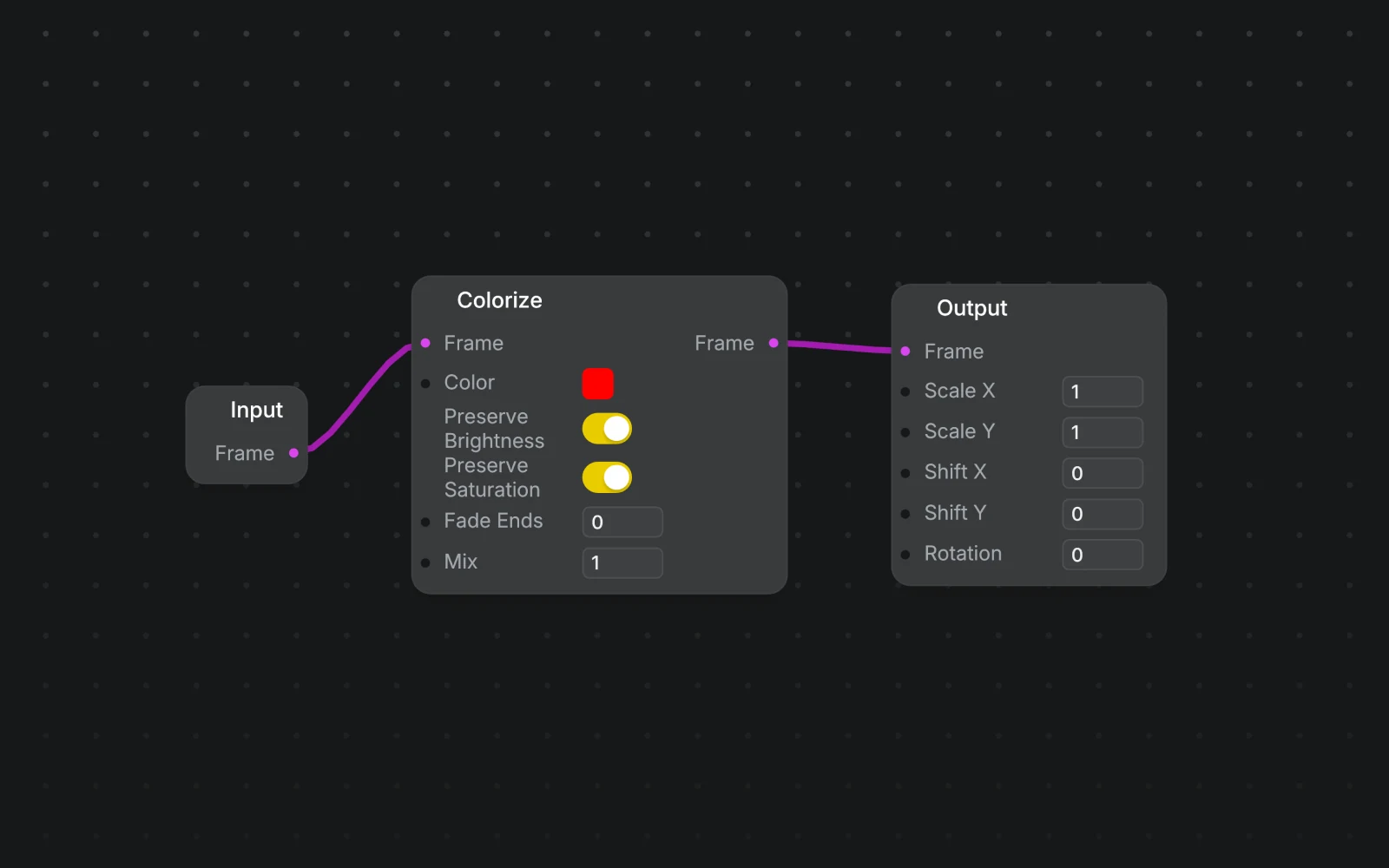
- patch the effect graph
- publish node inputs as controls on the effect's row
- set display ranges and defaults for published controls
- turn on Retrigger when an effect should restart its internal timing each time it is turned on
- save the current graph as a new user preset
- delete user presets you no longer need
Connected inputs cannot be published as FX controls. If an input is driven by another node, edit the graph connection instead.
MIDI and OSC Control
Effect controls can be mapped through MIDI or OSC. Learn works per slot and per control. A learned mapping targets that group; switch Scope to Selected Group if it should follow whichever group is focused.
Generic MIDI and OSC routing supports scalar controls, switches, and the effect's enabled state. OSC can also set color controls one channel at a time, for example /group/0/fx/colorize/color/r, /g, and /b. Sync-rate controls map to a fader that steps through the rates. In learn mode, click a rate in the dropdown's list, or a swatch in a color control's picker, to map a button that jumps straight to that rate or color.
For default addresses, slot indexing, and preset short names, see Output Group Effects in the OSC guide.
Tips
- Use per-laser effects on groups whose laser order matches the physical rig.
- Rename effect instances for the show: "BPM chase" is easier to read than a second "Chase".
- Save custom graph edits as presets when you expect to reuse them in another project.
- Map
enabledto a controller button for effect punches during live performance.
Related
- Multiple Lasers: route clips to output groups and build multi-projector movement
- Node Graph: edit the graphs behind custom effects
- MIDI: map effect controls to a hardware controller
- OSC: control effect chains over the network