Use NDI, Syphon, and Spout Output in Modulaser
Modulaser can send each laser as a live video stream. Use this when you want to route laser drawings into Resolume, OBS, TouchDesigner, MadMapper, VDMX, vMix, or another video tool.
This guide covers video output from Modulaser. Resolume is used as the main example, but the same setup works in other apps that can receive NDI, Syphon, or Spout.
Want to bring video into Modulaser and turn it into laser output instead? See Turn NDI and Syphon Video into Laser Output.
Choose a Protocol
| Protocol | Best for |
|---|---|
| Syphon | Same-machine workflows on macOS |
| Spout | Same-machine workflows on Windows |
| NDI | Network workflows, separate machines, and cross-platform routing |
Use Syphon or Spout when Modulaser and the receiving app run on the same computer. Use NDI when you want to send the stream over the network or between different operating systems. For NDI, use a wired connection instead of WiFi when possible.
Get a Modulaser Stream Running
Before another app can receive anything, Modulaser needs a laser with a stream enabled and an output group with a clip assigned.
- Open Output Settings.
- Add a laser.
- Select the laser and enable Streams > Send to NDI, Send to Syphon, or Send to Spout.
- Add an output group.
- Add the laser to that output group.
- Return to the main view, select a clip, and click Assign on the output group.
You do not need a physical DAC for this workflow. The laser acts as the source for the video stream, and the output group decides which clip feeds it.
Each enabled laser produces its own stream. If you enable NDI, Syphon, or Spout on multiple lasers, each laser appears as a separate source in the receiving app.
Syphon Output
Syphon shares real-time video between applications on the same Mac.
In Output Settings, select a laser and enable Send to Syphon. The laser appears as its own Syphon source. Adjust resolution and line width on the same panel.
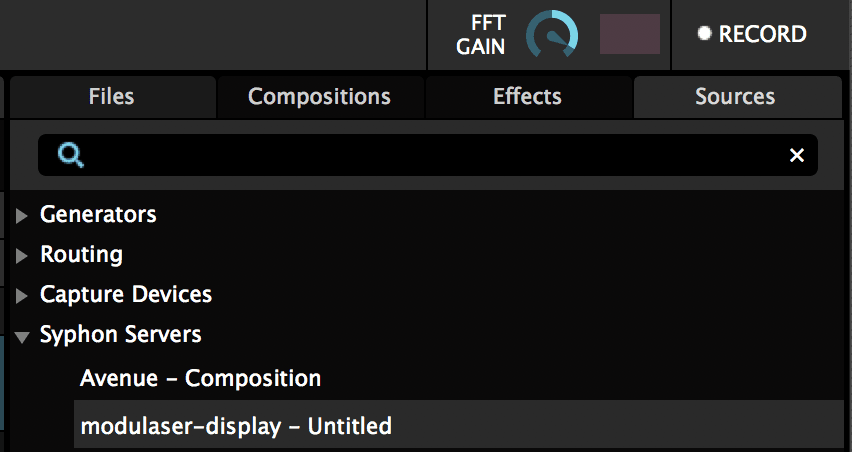
In Resolume Avenue or Arena, open the Sources tab on the right panel. Under Syphon Servers, you should see your Modulaser laser. Double-click it and the Preview Monitor shows the laser output.
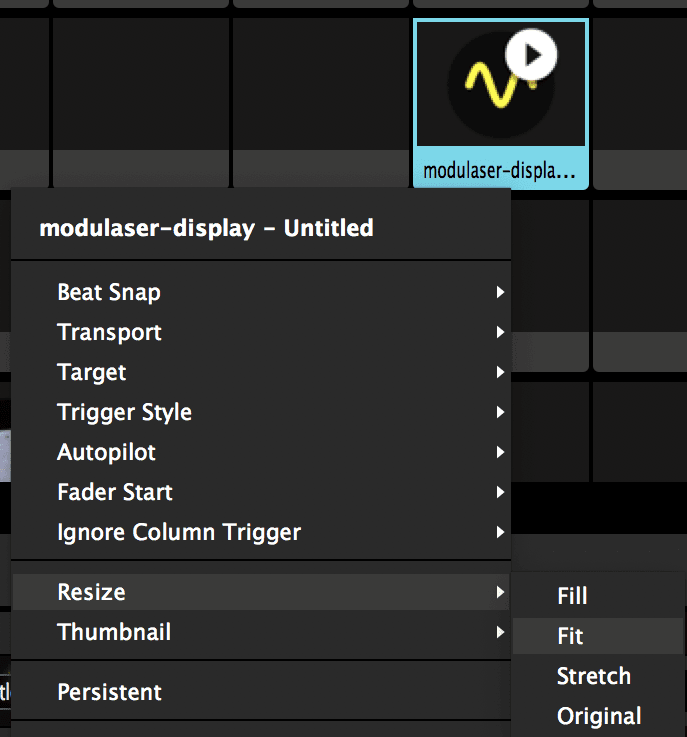
Drag the source from the Sources tab to an empty clip in Resolume. Right-click the clip and choose Resize > Fit to match the source resolution.
From here you can layer effects and mix the Modulaser output with other footage in Resolume.
NDI Output
NDI sends real-time video over a local network. It is useful when Modulaser and the receiving app run on separate machines, or when you want a cross-platform routing option.
In Output Settings, select a laser and enable Send to NDI. The laser appears on the network as its own NDI source, prefixed with your machine name. Adjust resolution and line width on the same panel.
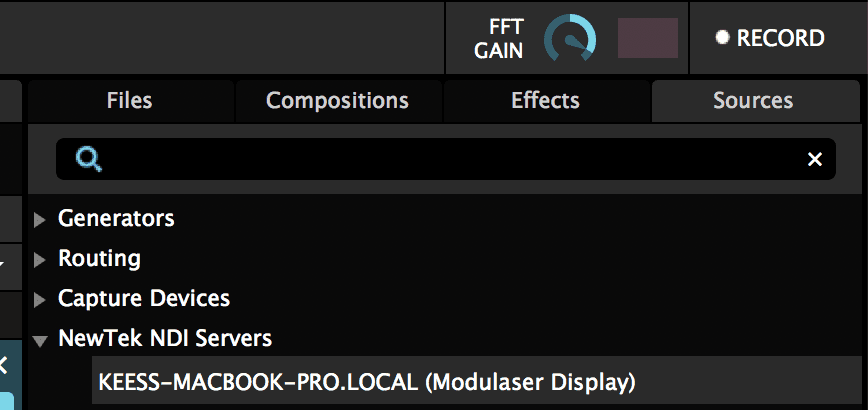
In Resolume, open the Sources tab on the right panel. Under NDI Servers, you should see your network device name followed by the Modulaser laser name. Double-click it to preview.
Drag the source to an empty clip and use Resize > Fit as with Syphon.
Spout Output
Spout is the Windows counterpart to Syphon. Use it when Modulaser and the receiving app run on the same Windows machine.
In Output Settings, select a laser and enable Send to Spout. The laser appears as a Spout sender in compatible Windows apps.
Tips for VJ Output
Line width controls the thickness of the drawn lines in the video stream.
Resolution sets the size of the video stream. Use a higher resolution when you need more detail, or a lower one if you want to reduce network or GPU load.
Stream appearance also includes afterglow, glow, and anti-aliasing (Off, 2×, or 4×). Higher anti-aliasing smooths the lines but costs more GPU. Everything except resolution is shared by all streams on the same laser.
Multiple lasers can produce separate streams. This is useful when you want to route different Modulaser outputs to separate layers or clips in your VJ software.
FAQ
Why does my NDI, Syphon, or Spout source not appear?
Make sure the stream is enabled on the laser. For Syphon or Spout, Modulaser and the receiving app must run on the same computer. For NDI, make sure both machines are on the same network.
Why is the source visible but blank?
Make sure the laser belongs to an output group and that the group has a clip assigned. The stream can exist before any clip is routed to it. A stream also goes black while Blackout is on, or when the output group's opacity or the master intensity is at 0.
Why is the image the wrong size?
Use Resize > Fit in Resolume, or adjust the stream resolution in the laser's stream settings.
How do I make the lines thicker or thinner?
Adjust the stream line width in Output Settings. This changes how the laser drawing is rasterized for video output.