Do more with your LaserCube
Modulaser connects directly to the LaserCube by Wicked Lasers, so you can use it as LaserCube software for live shows, experiments, and more flexible creative control.
Patch laser scenes with nodes, sequence clips on the timeline, trigger visuals live, and tune scan speed, blanking, color, dwell, and PPS from one app. You can try Modulaser with your LaserCube for free on macOS, Windows, and Linux.
Already have a LaserCube? Download Modulaser, connect over Ethernet, and select it as the DAC for a Laser. Ethernet is the best choice for stable output.
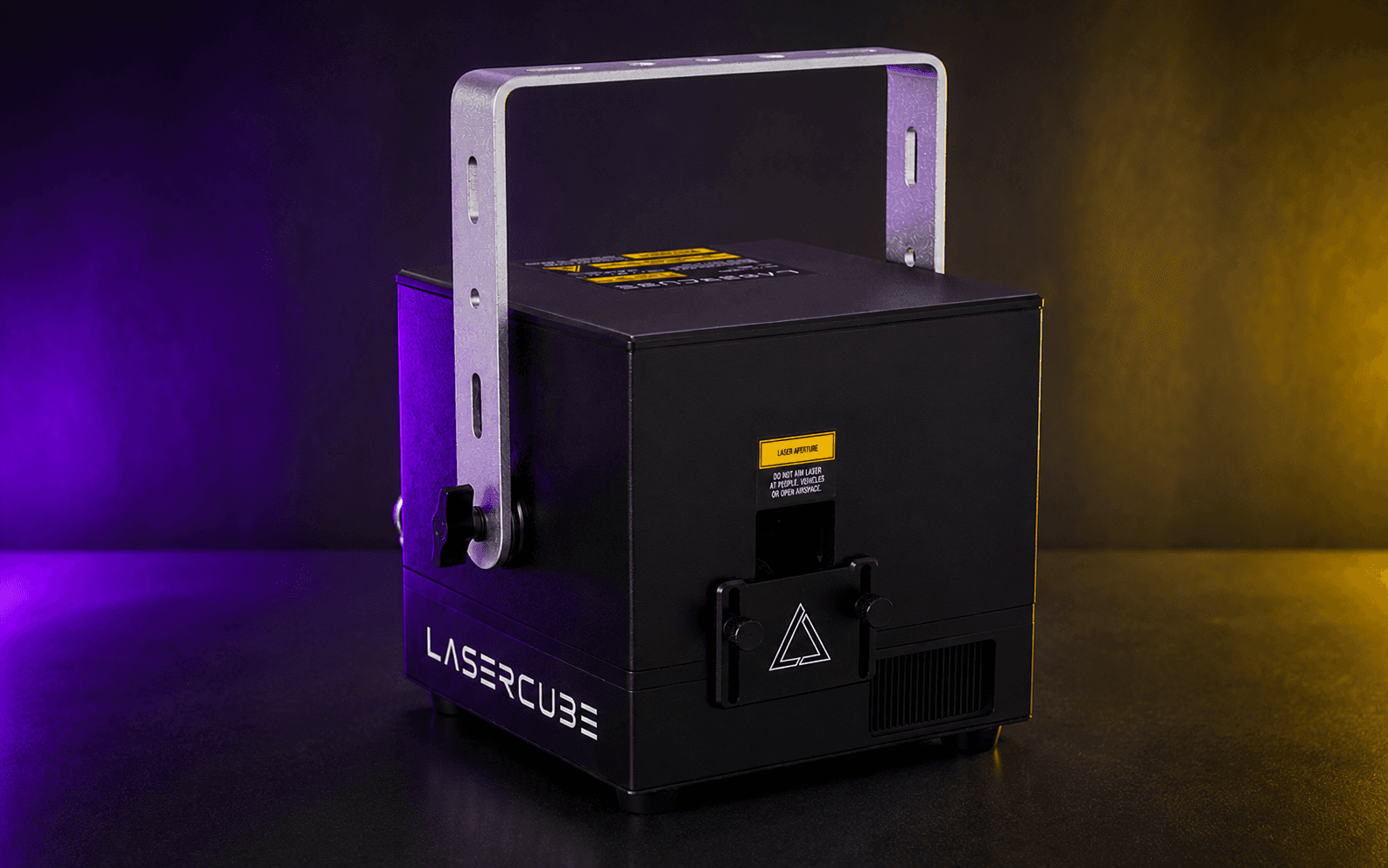
Why use Modulaser with LaserCube?
- Build laser scenes with nodes instead of only using preset animations.
- Sequence clips on the timeline or trigger them live.
- Use MIDI, OSC, audio input, or BPM sync for live control.
- Route one or more LaserCubes through output groups.
- Calibrate scan speed, blanking, color, dwell, and PPS with live test patterns.
What You Need
- A LaserCube or older USB LaserDock model.
- An Ethernet connection for best results, or WiFi for quick tests.
- Modulaser for macOS, Windows, or Linux.
WiFi vs. Ethernet
The LaserCube supports both WiFi and Ethernet. We strongly recommend using Ethernet. WiFi is convenient for a quick test, but it can drop frames and cause flickering under real load. For reliable output, connect an Ethernet cable between your LaserCube and your computer or router.
Setup
- Connect your LaserCube to your computer or router with an Ethernet cable (or WiFi as a fallback). Turn it on.
- Turn the key so the two LEDs above it turn white.
- Open Modulaser.
- Open Output Settings with View → Lasers (
CmdCtrlCmd/Ctrl + L), or with Output Settings on the Output Groups board. - In the Lasers list, press + to add a laser, then under DAC select your LaserCube.
- In the Output Groups list, press + to add a group, then drag your laser from Available into In Output.
- Close Output Settings, then select a clip, or open the Library and pick a preset if you don't have any yet.
- Press Assign on the output group to assign the clip to it.
- Press Arm in the right panel to start output.
Calibration
Once output is working, open the Output Settings window and run the Calibration Wizard on your laser profile. The wizard shows test patterns for scan speed, blanking, color, and quality, so you can tune the LaserCube with live feedback. See Improve Laser Output for details on what each setting does.
If even simple shapes or test patterns only flash in pieces, check connection stability before changing the laser profile. Close LaserOS or other laser apps, use Ethernet where possible, and make sure Modulaser is up to date. If simple shapes output reliably but flicker or look rough, move on to laser profile tuning.
Never look directly into the laser beam. This can cause permanent eye damage. Read more in our Laser Safety guide.
Older USB models (LaserDock)
Some early LaserCube units and the LaserDock connect over USB instead of WiFi. Modulaser supports these too. Plug the LaserCube into your computer with a USB cable and select it as the DAC in Output Settings. No drivers needed. On Linux, USB access needs a udev rule, which the .deb and .rpm packages install for you. See USB DACs.
Troubleshooting
If the LaserCube isn't showing up in Modulaser:
- Check scan settings: Make sure LaserCube Network (or LaserCube USB (LaserDock) for USB models) is checked under Scan for in Settings.
- Check your network: Make sure the LaserCube and your computer are on the same network. If using WiFi, note that the LaserCube creates its own network by default; check the LaserCube manual for how to connect it to your router instead. For best results, use Ethernet.
- Charge the battery: The LaserCube charges with the provided power adapter, not over USB.
- Close other apps: If LaserOS or another app is connected to your LaserCube, Modulaser can't access it. Quit other laser software and restart Modulaser.
- Check the key switch: The two LEDs above the key must be white before the laser will output.
For USB models:
- Try a different USB cable: Some cables are charge-only and don't carry data. Use the cable that came with the LaserCube or a known data cable.
- Try a different USB port: Some USB hubs don't provide enough power. Connect directly to your computer.
FAQ
Is Modulaser an alternative to LaserOS?
Yes. Modulaser can control LaserCube directly, so you can use it when you want node patching, timeline sequencing, live control, and deeper output calibration.
Should I use LaserCube over WiFi?
Use WiFi only for quick tests. Ethernet is much more reliable for live output because it avoids dropped frames and flicker.
Does Modulaser support older USB LaserCube and LaserDock models?
Yes. Plug the USB model into your computer and select it as the DAC in Modulaser. No drivers are needed.
Can I use multiple LaserCubes with Modulaser?
Yes. Add a Laser for each LaserCube, then route clips through output groups. Use Ethernet for reliable multi-projector output.