Loading…
Documentation
Modulaser can react to live audio from any input device: a USB microphone, an audio interface, or a virtual loopback from your computer. The audio modulator turns incoming sound into a 0–100% signal you can route to any parameter, so shapes pulse with the kick, colors shift with the melody, or geometry physically deforms to match the waveform.
Multi-channel interfaces are supported, so different channels can drive different parts of your show.
Looking for audio playback on the timeline? See the Timeline Audio Track section. This guide is about live audio input for reactive laser visuals.
This is the fastest way to make a clip react to music:
Open Settings (the gear icon) and click the Devices tab. Select your audio input device from the Device dropdown. All available input devices are listed by name. Select "None" to disconnect.
The selected device is shared by all audio modulators and AudioInput nodes across all clips. Each modulator or node picks which channel to read from. Your device selection persists across sessions.
When a device is connected, each input channel shows a live level meter with two controls:
Both appear as vertical markers on the level meter. These settings apply globally, so every modulator reading from that channel sees the gated and limited signal.
Click the + button on the modulator panel and select Audio. The modulator starts reading from the selected device immediately.
If your device has multiple inputs, use the channel selector to pick which one this modulator reads. With a multi-channel interface, you can have different modulators reacting to different signals: kick on channel 1, vocals on channel 2, hi-hats on channel 3.
The audio modulator has three output modes:
Loudness: Envelope-followed peak amplitude. Produces a single value per frame that rises with loud transients and decays smoothly. Best for beat-reactive effects like pulsing size, brightness, or scale.
Spectrum: FFT energy within a configurable frequency band. A live FFT sits below the mode selector with a draggable range selector. Drag the low and high handles to isolate a band (e.g. 20–200 Hz for bass, 5–15 kHz for hi-hats), or drag the range itself to slide both handles together. The output is the energy in that band, so you can target specific frequencies.
Waveform: Raw audio samples mapped across the shape's points. Each point on the laser shape samples a different moment from a rolling audio buffer, so the shape physically deforms to match the waveform. Creates oscilloscope-like effects and audio-driven geometry.
| Control | Range | Default | Available in | What it does |
|---|---|---|---|---|
| Gain | 0.0–4.0 | 1.0 | All modes | Signal multiplier. Boost quiet sources or attenuate loud ones. |
| Fall | 0.01–5.0s | 0.1s | Loudness, Spectrum | Envelope decay time. Low values = snappy response, high values = smooth and lazy. |
| Window | 5–3000ms | 20ms | Waveform | Duration of audio mapped across points. Short = fine detail, long = broader waveform. |
| Freq Low | 20–20,000 Hz | 20 Hz | Spectrum | Low cutoff of the frequency band. |
| Freq High | 20–20,000 Hz | 20,000 Hz | Spectrum | High cutoff of the frequency band. |
Every audio modulator shows a live spectrum display regardless of which mode you're using. The bars reflect that modulator's own gain and fall settings. In Spectrum mode, the interactive range selector appears below the bars: bars inside the selected range are highlighted, bars outside are dimmed.
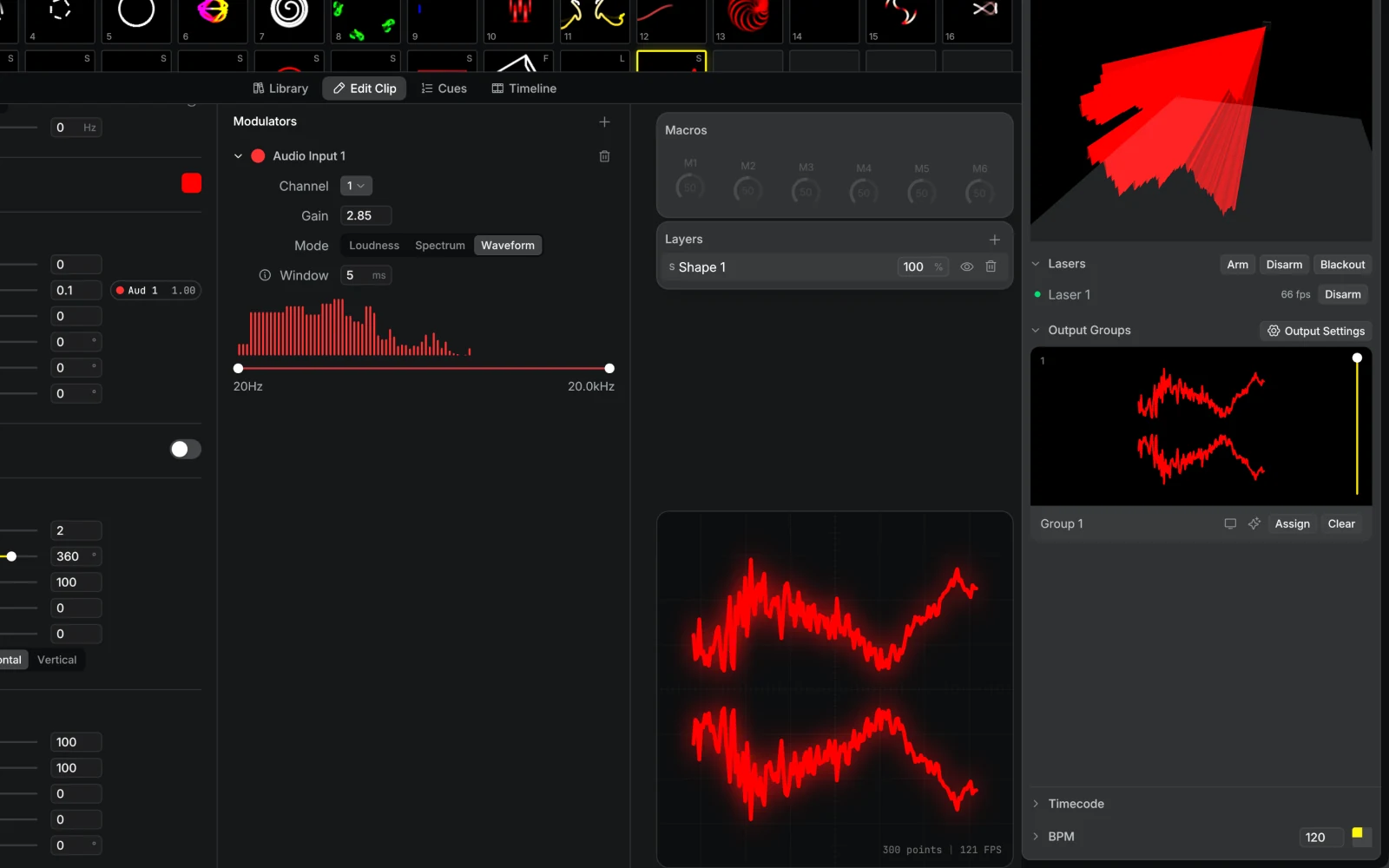
Once you have an audio modulator, route it to any parameter by dragging the modulator's circle onto a parameter target. The routing amount controls how much the audio signal affects the parameter.
Kick pulse: Set the modulator to Loudness and route it to Scale or Brightness. Keep Fall short for a tight pulse, or increase it for a smoother swell.
Bass color shift: Set the modulator to Spectrum, drag the frequency range to the low end, and route it to Hue or Saturation. This lets the bass move color without the whole mix driving the reaction.
Hi-hat sparkle: Use Spectrum with a high-frequency range and route it to Brightness or a small amount of Scale. Keep the routing amount subtle so the reaction adds texture instead of flicker.
Oscilloscope geometry: Set the modulator to Waveform and route it to an oscillator's Level or a shape parameter that changes geometry. Short Window values show tighter waveform detail; longer values spread more audio over the shape.
Multi-channel patch: With a multi-channel audio interface, use separate modulators for separate inputs. For example, route kick to scale, vocals to hue, and hi-hats to brightness.
The same audio functionality is available as an AudioInput node in NodeGraph layers, with the same parameters (mode, channel, gain, fall, frequency range, window). The node outputs a scalar value of 0–100.
In Spectrum and Waveform modes, the output varies per point along the shape's position, so different parts of the shape respond to different frequencies or waveform positions. This enables spatially-varying audio response that isn't possible with the modulator alone.
If you're playing audio on the same computer running Modulaser, it's better to route the audio directly instead of picking it up through a microphone. Direct routing means zero distortion and no delay.
Use Loopback (paid) or Blackhole (free).
Blackhole works but takes some configuration. Follow the setup instructions including the Audio MIDI Setup step. Once configured, go to System Settings > Sound > Output and select "Multi-Output Device", then open Modulaser's device settings and select "Blackhole (2ch)".
Use VB-Cable (free). After installation, open Modulaser's device settings and select "CABLE Output".