How to VJ with Syphon or NDI
Modulaser is built for lasers, but it works just as well for VJing. You can send Modulaser's output to a VJ program like Resolume to remix laser drawings with other footage, or bring external video into Modulaser to vectorize it for laser output.
Modulaser supports two realtime video-sharing standards: Syphon (macOS, same machine) and NDI (cross-platform, over the network). Both work as outputs (send Modulaser to other software) and as inputs (receive video into Modulaser).
Outputs live in the Output Settings panel and are configured per laser. Each laser can independently enable Syphon, NDI, or both, with its own resolution (default 1920x1080) and line width. Every enabled laser produces its own stream.
This guide covers output to Resolume, receiving video input, and tips for configuring Modulaser for VJ use. Resolume is one example. If you use another VJ program, the same principles apply.
Syphon Output
Syphon is an open-source macOS technology for sharing realtime video between applications on the same machine. Not available on Windows. If you are on Windows, skip to NDI.
In Output Settings, select a laser and enable Syphon. The laser appears as its own Syphon source. Adjust resolution and line width on the same panel.
In Resolume (Avenue or Arena), open the Sources tab on the right panel. Under Syphon Servers, you should see your Modulaser laser. Double-click it and the Preview Monitor shows the laser output.
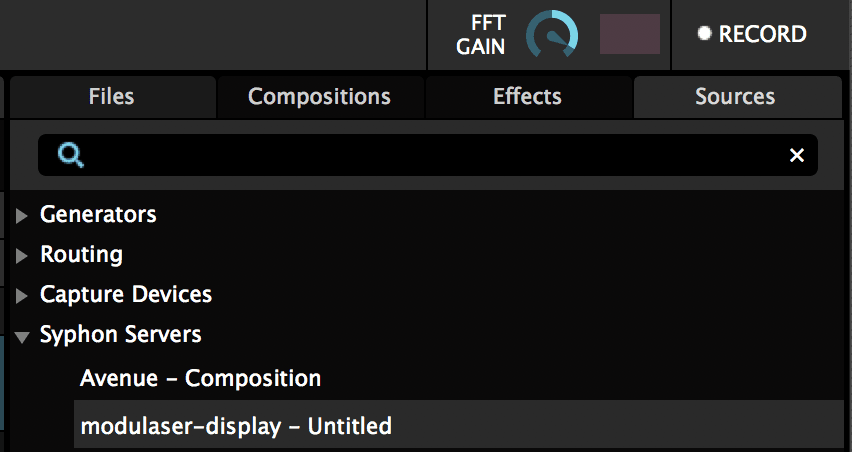
If the Preview Monitor is blank, make sure the laser has active content. Drag the source from the Sources tab to an empty clip in Resolume. Right-click the clip and choose Resize > Fit to match the source resolution.
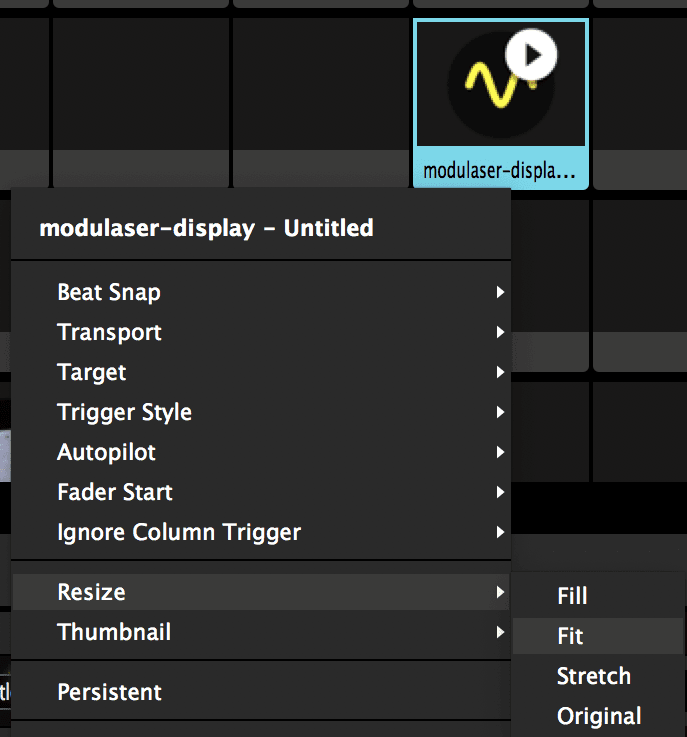
From here you can layer effects and mix the Modulaser output with other footage in Resolume.
NDI Output
NDI is a cross-platform realtime video protocol that works over the network. Use a wired connection instead of WiFi when possible.
In Output Settings, select a laser and enable NDI. The laser appears on the network as its own NDI source, prefixed with your machine name. Adjust resolution and line width on the same panel.
In Resolume, open the Sources tab on the right panel. Under NDI Servers, you should see your network device name followed by the Modulaser laser name. Double-click it to preview.
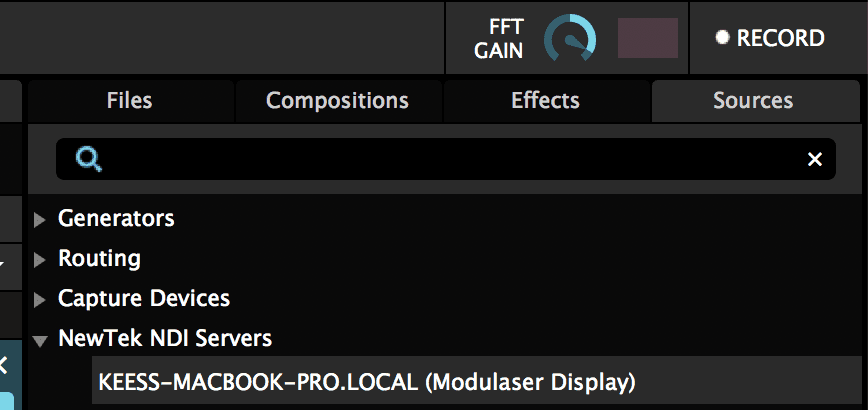
If the Preview Monitor is blank, make sure the laser has active content. Drag the source to an empty clip and use Resize > Fit as with Syphon.
Since NDI works over the network, you can run Modulaser and Resolume on separate machines. Multiple lasers can each stream their own NDI feed, so you can route different laser outputs to different layers or clips in your VJ software.
NDI and Syphon Input
You can also bring video into Modulaser from NDI or Syphon sources. Modulaser vectorizes the incoming video in real time using edge detection, converting it to laser-compatible paths.
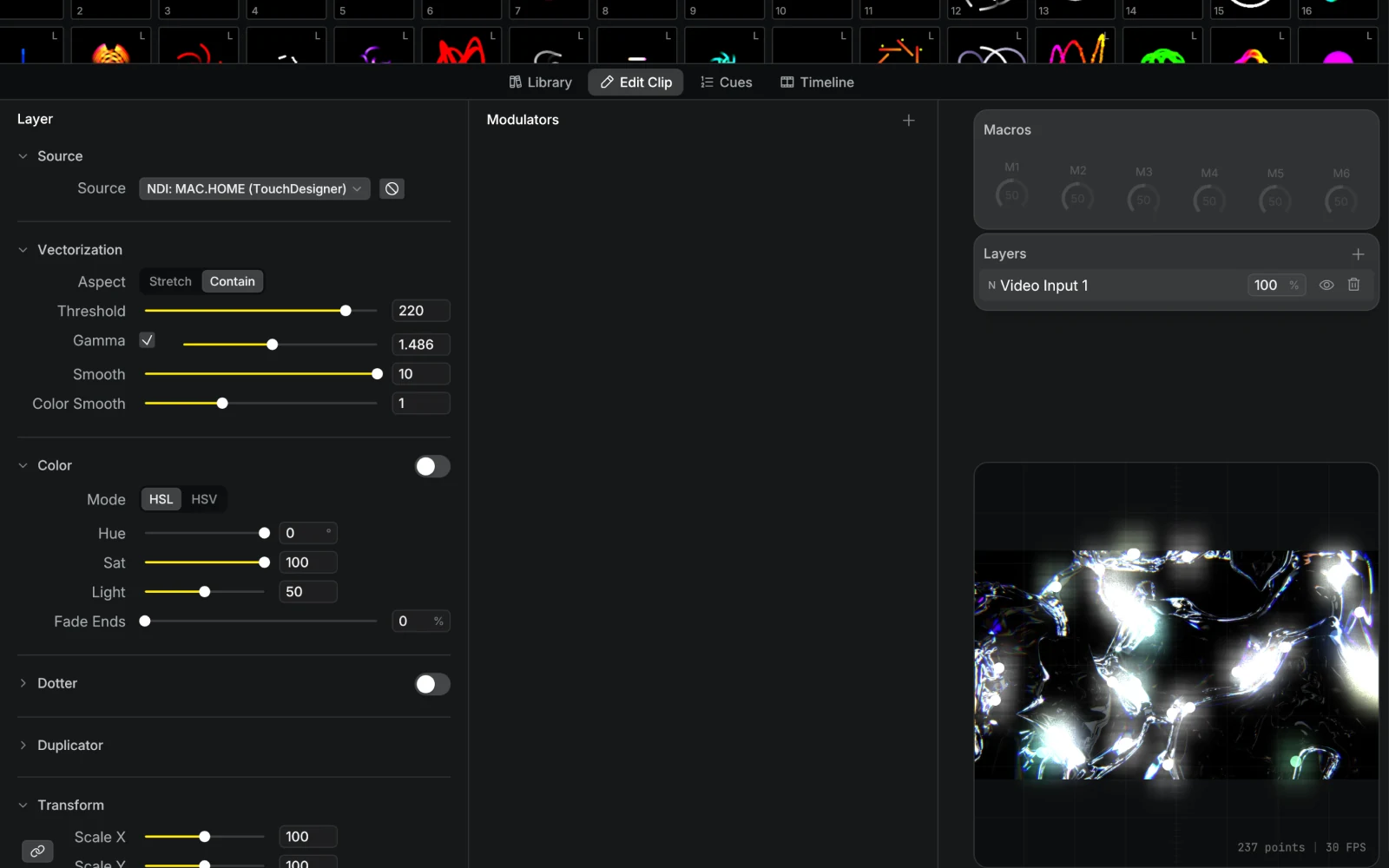
Use the Video Input node in the node graph to receive video. The node's dropdown lists all discovered NDI and Syphon sources. NDI sources are discovered automatically on the network. Syphon sources appear from applications running on the same Mac.
If a source disconnects, Modulaser reconnects automatically when it reappears. Multiple clips or layers can share the same source without extra overhead.
NDI sources on the same subnet are found automatically. To pull from a machine on a different subnet, add its IP under the NDI discovery settings.
The raster-to-vector conversion traces edges in the video. High-contrast source material with clear outlines works best. Tune the vectorization threshold and smoothing per clip to control how edges are detected. A color override lets you remap the incoming colors to match your show palette.
Ideas for video input:
- Feed a live camera into the laser for real-time silhouette tracing
- Connect Resolume, TouchDesigner, or any NDI/Syphon-capable VJ tool for bidirectional workflows
- Use pre-rendered video loops as animated laser content
VJ Tips
A few settings help Modulaser look better for VJ use.
Afterglow: makes line visuals slowly fade to black, creating more organic feeling visuals. Higher values mean the lines linger longer.
Line width: increases the thickness of the drawn lines.
Fake limitations of a laser: Modulaser simulates laser behavior by default, which distorts lines slightly. For VJing you may want to disable this.